Every recorded change to this guide, oldest changes drop off after 50 entries.
When
Action
By
What changed
Edited
itsDmod
View changes
Before
On Deadline, we use Wasteland's RP Chat as our chatbox mod to interact with the players and the world around us. In this guide, you will learn how to use the chatbox: from the meaning of each way to write your emotes, to commands, and settings.
🗂️ Chatbox tabs
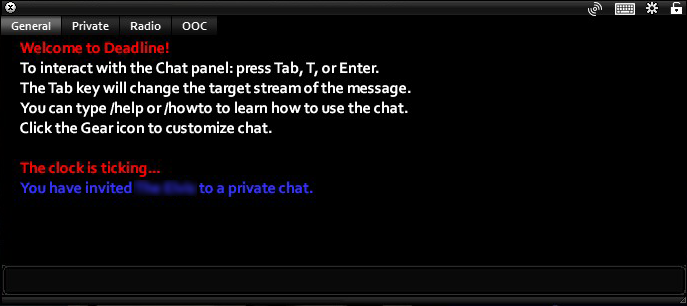
The chatbox has different tabs you can switch to by clicking on them or pressing the TAB button on your keyboard.
📖 General
Always active.
This tab is used for anything that happens in character: speech, actions, or environmental descriptions. It will also show the results of dice rolls.
📻 Radio channels
Active whenever a walkie-talkie or a radio are on and in your inventory.
To talk on the radio, you don't need to have it equipped as primary or secondary -it simply needs to be on and in your inventory. Bad weather conditions and being almost out of range will make the transmission not show the full message, as there will be interferences stopping the voices from fully coming through.
If you have more than one walkie-talkie or radio active, you will have more than one radio tab in your chatbox Anything that a character says over a radio will appear in this tab, as long as they're in range.
👥 OOC
Always active.
This tab is used for anything that needs to be commented out of character -for example, to discuss out-of-character issues or notify players of something without exiting the scene. Having an OOC tab doesn't mean you should be using it frequently -as the message still displays over your head, constant chatter and/or jokes might be immersion-breaking for other players during a scene, which they might not appreciate.
🔞 Private
This tab appears when a player requests another player for a private chat.
Private Chat should be used for any difficult topic such as pregnancy, romantic content, or torture to prevent people from stumbling on it by accident without having consented. Do not use private chat to conceal regular conversation from being overheard. You cannot private chat around a third person. Using it as a means to detect others or powergame your secret conversations is a serious Concern.
This tab's use is obligatory for any kind of roleplay that could be considered erotic and it goes beyond PG-13 boundaries.
This kind of roleplay isn't forbidden on Deadline. However, not using this private channel to roleplay this kind of content is a ban-able offense. You can't use whispers, as other players nearby (upstairs or downstairs too) or admins on the zone might see what you're writing.
To start a private chat, you either use the command /private "Name of Character" (quotations are needed!) or click on the chatbox settings, go to the "Actions" tab, and click on "Invite private: (Character name)". The other player will receive a petition to start a private chat. When they accept, you will have a new tab in your chatbox.
🤸 How to emote
To roleplay, you must be in the 📖general tab. Here, you will be able to read and react to anything that's being said, done, or described. To be able to participate, you must know the commands you can use for this along with their ranges and the possible combinations available.
💬 Modes
You can do different actions with the three different modes the chat mod offers.
Speech [/say or no command]
Used to make your character say something.
Examples:
/say I'm here!
I'm here!
Emote [/me]
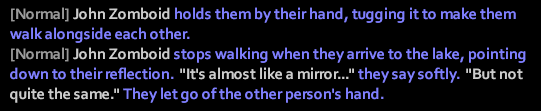
Used to make your character do an action or describe the way they're talking, a reaction... You can combine it with quotations to write speech in between the actions.
Examples:
/me holds them by their hand, tugging it to make them walk alongside each other.
/me stops walking when they arrive to the lake, pointing down to their reflection. "It's almost like a mirror..." they say softly. "But not quite the same." They let go of the other person's hand.
Environmental [/env]
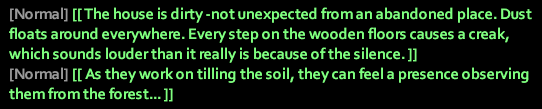
To describe something happening in the environment.
Examples:
/env The house is dirty -not unexpected from an abandoned place. Dust floats around everywhere. Every step on the wooden floors causes a creak, which sounds louder than it really is because of the silence.
/env As they work on tilling the soil, they can feel a presence observing them from the forest...
This command should not be used as a replacement for /me. Keep in mind that it won't show the name of your character, so in a fast-paced environment or in a moment where there's more than one character, people might not be able to track down who the writer of the emote is -and it doesn't fit the purpose of what the command is meant for.
📢 Ranges
You can see the range at the start of each message, right before the name of the character. As long as you're inside the range, you will be able to hear what the other character is saying.
Short range
Whisper
Quiet
Range
1 tile around you
5 tiles around you
Commands
/whisper or /w
/low or /l
Example
/whisper Come close, this is a secret...
/low I don't want everyone to hear this, so...
Quiet is used to have good etiquette when there's many players in the same scene.
Normal range
Say
Range
10 tiles around you
Commands
/say or no specific command
Example
/say My name is... or My name is...
Long range
Loud
Shout
Range
30 tiles around you
50 tiles around you
Commands
/loud, /yell, or /y
/shout or /s
Example
/loud You, over there, come back!
/shout Come out with your hands up!
[Shout range] special feature: shows up in red colour
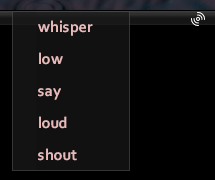
If you want to see how far your message will reach, you can use this specific button on the chatbox and pick one of the options. The floor will light up and darken, showing you the range of the option you chose.
🗯️ Combinations
Unless a specific range is specified in the command, all of them are from a [normal] range by default. If you want to combine them, you first have to write the mode and then the range you want your emote to reach, for example:
/mewhisper or /mew: Only people from 1 tile can see your action!
/envloud or /envy: An environmental description that can be seen from 30 tiles away.
/sayshout or /shout: Speech that is being shouted, which can be heard from 50 tiles away. Keep in mind you can also do this on the OOC tab by adding the range at the end of the OOC command, for example:
/oocshout: In case you need everyone on the surroundings to see your OOC message.
⚙️ Chatbox options and settings
There are certain things you can access to through the settings of the chatbox -for example, character customization or starting a trade with another player. The ones that are more specific of the chatbox mod are:
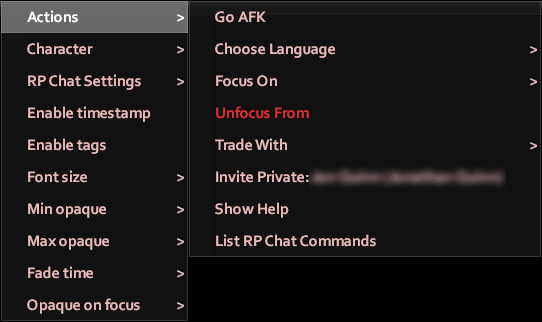
Actions
Go AFK: The letters "AFK" appear over your head and if a player approaches you, a message on their chatbox appears indicating you are away.
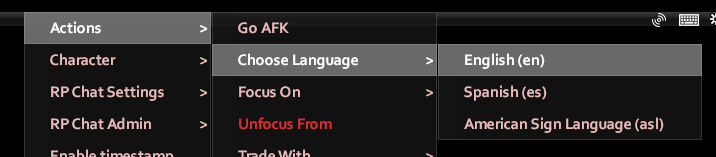
Choose language: If your character knows more than one language, you will get a list here.
Focus on: If the chat gets too overwhelming because of too many character being in the same zone, you can use this to only read the messages of the players you pick.
Unfocus from: Stop focusing on the chosen players.
Trade with: Instead of right clicking on the floor to trade, you can use this to start a trade. Useful if you're in a safehouse you're not a part of.
Invite Private: (Character Name): Invites a character nearby to a private chat tab.
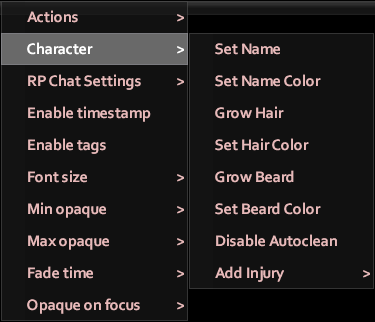
Character
Set name: You can set the name of your character. You can also do this with the command /name (name of character, for example /name Amelia.
Set name color: When you send a message, the colour of your name will be white -you can change the color with this option.
Grow hair: Your character's hair will grow to the maximum length.
Set hair color: To change the colour of your character's hair.
Grow beard: Your character's beard will grow to the maximum length.
Set beard color: To change the colour of your character's beard.
Enable/disable autoclean: If it's enabled, your character will not get dirty or bloody.
Add injury: to apply mechanical injuries coming from RP. There is no reason to use this to farm first aid, as you have Grindline available -with thread and a needle, you will be able to easily level first aid up.
Commands
You can also use the chatbox to do all of these previous things by writing out the commands. To get access to this list, you can type /help.
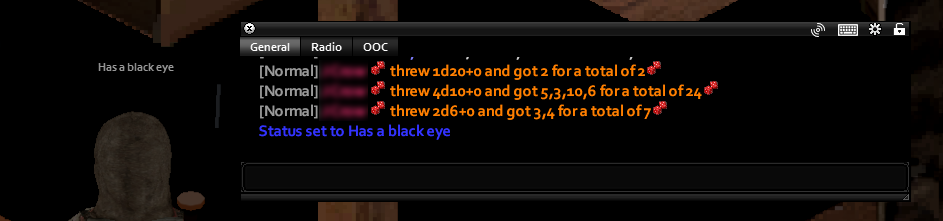
🎲 You can also use this to roll dice, though remember that Deadline has its own Dice Mod you get access to through the "client" button or by typing /dice in the chatbox.
An example would be /roll 1d20 : the first number is the number of dice you roll (one in this case), and the second is the number of sides the dice has (20 in this case). You could also do other kinds of rolls, like /roll 4d10 or /roll 2d6.
To set a description over your head, you would use the command /status followed by a description, for example /status Has a black eye
🌐 Languages
When you're writing your character's app, you can write the languages they're fluent in -or they might learn a language during your play time. Anyone that knows your language will be able to understand what your character is saying, while others will not have a clue on what's being said!
How to request a language
Everyone starts with English. Players are restricted to knowing 2 additional languages unless they take the in game trait Polyglot.
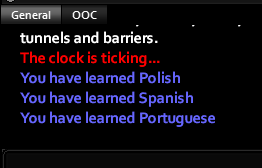
To know any languages other than English, it must be approved as part of your character app. It will be applied to your character up to 30 minutes after leaving the tutorial/starting zone. You'll see a message like this:
If it has been more than 30 minutes, open a General ticket.
Because Chapter 3 is a short chapter, we are not allowing learning of additional languages in game.
*Note: If you die and don't restore on a bed, you may lose the language. You may open a General Ticket to get the issue resolved.
How to speak in another language
There are two ways you can do it:
Use chatbox settings, aka click the cog, to switch between languages by going to Actions > Choose Language > (Select language)
Do it with chat commands The way to do it is by adding ":(language code)" at the end of your command. For example, if your character can speak Spanish, the command would become /say:es or /meloud:es -you can use the command combinations! To know the language code, you can check it out by following the image above. You will eventually learn the language code and not need to peek anymore!
❔ Keep in mind
Only the spoken part of your text, not the action or descriptions, will be what's hidden from characters that don't know the language.
❌ What to not do
You cannot say a character's name and hide it behind a language. Everyone should be able to understand the name of the character, so mention it in a description right after or there could be OOC consequences.
After
On Deadline, we use Wasteland's RP Chat as our chatbox mod to interact with the players and the world around us. In this guide, you will learn how to use the chatbox: from the meaning of each way to write your emotes, to commands, and settings.
🗂️ Chatbox tabs
The chatbox has different tabs you can switch to by clicking on them or pressing the TAB button on your keyboard.
📖 General
Always active.
This tab is used for anything that happens in character: speech, actions, or environmental descriptions. It will also show the results of dice rolls.
📻 Radio channels
Active whenever a walkie-talkie or a radio are on and in your inventory.
To talk on the radio, you don't need to have it equipped as primary or secondary -it simply needs to be on and in your inventory. Bad weather conditions and being almost out of range will make the transmission not show the full message, as there will be interferences stopping the voices from fully coming through.
Do not use /env on the radio. Also, keep in mind that no one would know whether you've clicked the radio off or not, so avoid doing /me clicks the radio off.
If you have more than one walkie-talkie or radio active, you will have more than one radio tab in your chatbox Anything that a character says over a radio will appear in this tab, as long as they're in range.
👥 OOC
Always active.
This tab is used for anything that needs to be commented out of character -for example, to discuss out-of-character issues or notify players of something without exiting the scene. Having an OOC tab doesn't mean you should be using it frequently -as the message still displays over your head, constant chatter and/or jokes might be immersion-breaking for other players during a scene, which they might not appreciate.
🔞 Private
This tab appears when a player requests another player for a private chat.
Private Chat should be used for any difficult topic such as pregnancy, romantic content, or torture to prevent people from stumbling on it by accident without having consented. Do not use private chat to conceal regular conversation from being overheard. You cannot private chat around a third person. Using it as a means to detect others or powergame your secret conversations is a serious Concern.
This tab's use is obligatory for any kind of roleplay that could be considered erotic and it goes beyond PG-13 boundaries.
This kind of roleplay isn't forbidden on Deadline. However, not using this private channel to roleplay this kind of content is a ban-able offense. You can't use whispers, as other players nearby (upstairs or downstairs too) or admins on the zone might see what you're writing.
To start a private chat, you either use the command /private "Name of Character" (quotations are needed!) or click on the chatbox settings, go to the "Actions" tab, and click on "Invite private: (Character name)". The other player will receive a petition to start a private chat. When they accept, you will have a new tab in your chatbox.
🤸 How to emote
To roleplay, you must be in the 📖general tab. Here, you will be able to read and react to anything that's being said, done, or described. To be able to participate, you must know the commands you can use for this along with their ranges and the possible combinations available.
💬 Modes
You can do different actions with the three different modes the chat mod offers.
Speech [/say or no command]
Used to make your character say something.
Examples:
/say I'm here!
I'm here!
Emote [/me]
Used to make your character do an action or describe the way they're talking, a reaction... You can combine it with quotations to write speech in between the actions.
Examples:
/me holds them by their hand, tugging it to make them walk alongside each other.
/me stops walking when they arrive to the lake, pointing down to their reflection. "It's almost like a mirror..." they say softly. "But not quite the same." They let go of the other person's hand.
Environmental [/env]
To describe something happening in the environment. It cannot be used in the radio tab.
Examples:
/env The house is dirty -not unexpected from an abandoned place. Dust floats around everywhere. Every step on the wooden floors causes a creak, which sounds louder than it really is because of the silence.
/env As they work on tilling the soil, they can feel a presence observing them from the forest...
This command should not be used as a replacement for /me. Keep in mind that it won't show the name of your character, so in a fast-paced environment or in a moment where there's more than one character, people might not be able to track down who the writer of the emote is -and it doesn't fit the purpose of what the command is meant for.
📢 Ranges
You can see the range at the start of each message, right before the name of the character. As long as you're inside the range, you will be able to hear what the other character is saying.
Short range
Whisper
Quiet
Range
1 tile around you
5 tiles around you
Commands
/whisper or /w
/low or /l
Example
/whisper Come close, this is a secret...
/low I don't want everyone to hear this, so...
Quiet is used to have good etiquette when there's many players in the same scene.
Normal range
Say
Range
10 tiles around you
Commands
/say or no specific command
Example
/say My name is... or My name is...
Long range
Loud
Shout
Range
30 tiles around you
50 tiles around you
Commands
/loud, /yell, or /y
/shout or /s
Example
/loud You, over there, come back!
/shout Come out with your hands up!
[Shout range] special feature: shows up in red colour
If you want to see how far your message will reach, you can use this specific button on the chatbox and pick one of the options. The floor will light up and darken, showing you the range of the option you chose.
🗯️ Combinations
Unless a specific range is specified in the command, all of them are from a [normal] range by default. If you want to combine them, you first have to write the mode and then the range you want your emote to reach, for example:
/mewhisper or /mew: Only people from 1 tile can see your action!
/envloud or /envy: An environmental description that can be seen from 30 tiles away.
/sayshout or /shout: Speech that is being shouted, which can be heard from 50 tiles away. Keep in mind you can also do this on the OOC tab by adding the range at the end of the OOC command, for example:
/oocshout: In case you need everyone on the surroundings to see your OOC message.
⚙️ Chatbox options and settings
There are certain things you can access to through the settings of the chatbox -for example, character customization or starting a trade with another player. The ones that are more specific of the chatbox mod are:
Actions
Go AFK: The letters "AFK" appear over your head and if a player approaches you, a message on their chatbox appears indicating you are away.
Choose language: If your character knows more than one language, you will get a list here.
Focus on: If the chat gets too overwhelming because of too many character being in the same zone, you can use this to only read the messages of the players you pick.
Unfocus from: Stop focusing on the chosen players.
Trade with: Instead of right clicking on the floor to trade, you can use this to start a trade. Useful if you're in a safehouse you're not a part of.
Invite Private: (Character Name): Invites a character nearby to a private chat tab.
Character
Set name: You can set the name of your character. You can also do this with the command /name (name of character, for example /name Amelia.
Set name color: When you send a message, the colour of your name will be white -you can change the color with this option.
Grow hair: Your character's hair will grow to the maximum length.
Set hair color: To change the colour of your character's hair.
Grow beard: Your character's beard will grow to the maximum length.
Set beard color: To change the colour of your character's beard.
Enable/disable autoclean: If it's enabled, your character will not get dirty or bloody.
Add injury: to apply mechanical injuries coming from RP. There is no reason to use this to farm first aid, as you have Grindline available -with thread and a needle, you will be able to easily level first aid up.
Commands
You can also use the chatbox to do all of these previous things by writing out the commands. To get access to this list, you can type /help.
🎲 You can also use this to roll dice, though remember that Deadline has its own Dice Mod you get access to through the "client" button or by typing /dice in the chatbox.
An example would be /roll 1d20 : the first number is the number of dice you roll (one in this case), and the second is the number of sides the dice has (20 in this case). You could also do other kinds of rolls, like /roll 4d10 or /roll 2d6.
To set a description over your head, you would use the command /status followed by a description, for example /status Has a black eye
🌐 Languages
When you're writing your character's app, you can write the languages they're fluent in -or they might learn a language during your play time. Anyone that knows your language will be able to understand what your character is saying, while others will not have a clue on what's being said!
How to request a language
Everyone starts with English. Players are restricted to knowing 2 additional languages unless they take the in game trait Polyglot.
To know any languages other than English, it must be approved as part of your character app. It will be applied to your character up to 30 minutes after leaving the tutorial/starting zone. You'll see a message like this:
If it has been more than 30 minutes, open a General ticket.
Because Chapter 3 is a short chapter, we are not allowing learning of additional languages in game.
*Note: If you die and don't restore on a bed, you may lose the language. You may open a General Ticket to get the issue resolved.
How to speak in another language
There are two ways you can do it:
Use chatbox settings, aka click the cog, to switch between languages by going to Actions > Choose Language > (Select language)
Do it with chat commands The way to do it is by adding ":(language code)" at the end of your command. For example, if your character can speak Spanish, the command would become /say:es or /meloud:es -you can use the command combinations! To know the language code, you can check it out by following the image above. You will eventually learn the language code and not need to peek anymore!
❔ Keep in mind
Only the spoken part of your text, not the action or descriptions, will be what's hidden from characters that don't know the language.
❌ What to not do
You cannot say a character's name and hide it behind a language. Everyone should be able to understand the name of the character, so mention it in a description right after or there could be OOC consequences.
Edited
idleSatire
View changes
Title: Chat Box and Commands → Chat Box, Commands, Languages
Edited
idleSatire
View changes
Before
On Deadline, we use Wasteland's RP Chat as our chatbox mod to interact with the players and the world around us. In this guide, you will learn how to use the chatbox: from the meaning of each way to write your emotes, to commands, and settings.
🗂️ Chatbox tabs
The chatbox has different tabs you can switch to by clicking on them or pressing the TAB button on your keyboard.
📖 General
Always active.
This tab is used for anything that happens in character: speech, actions, or environmental descriptions. It will also show the results of dice rolls.
📻 Radio channels
Active whenever a walkie-talkie or a radio are on and in your inventory.
To talk on the radio, you don't need to have it equipped as primary or secondary -it simply needs to be on and in your inventory. Bad weather conditions and being almost out of range will make the transmission not show the full message, as there will be interferences stopping the voices from fully coming through.
If you have more than one walkie-talkie or radio active, you will have more than one radio tab in your chatbox Anything that a character says over a radio will appear in this tab, as long as they're in range.
👥 OOC
Always active.
This tab is used for anything that needs to be commented out of character -for example, to discuss out-of-character issues or notify players of something without exiting the scene. Having an OOC tab doesn't mean you should be using it frequently -as the message still displays over your head, constant chatter and/or jokes might be immersion-breaking for other players during a scene, which they might not appreciate.
🔞 Private
This tab appears when a player requests another player for a private chat.
Private Chat should be used for any difficult topic such as pregnancy, romantic content, or torture to prevent people from stumbling on it by accident without having consented. Do not use private chat to conceal regular conversation from being overheard. You cannot private chat around a third person. Using it as a means to detect others or powergame your secret conversations is a serious Concern.
This tab's use is obligatory for any kind of roleplay that could be considered erotic and it goes beyond PG-13 boundaries.
This kind of roleplay isn't forbidden on Deadline. However, not using this private channel to roleplay this kind of content is a ban-able offense. You can't use whispers, as other players nearby (upstairs or downstairs too) or admins on the zone might see what you're writing.
To start a private chat, you either use the command /private "Name of Character" (quotations are needed!) or click on the chatbox settings, go to the "Actions" tab, and click on "Invite private: (Character name)". The other player will receive a petition to start a private chat. When they accept, you will have a new tab in your chatbox.
🤸 How to emote
To roleplay, you must be in the 📖general tab. Here, you will be able to read and react to anything that's being said, done, or described. To be able to participate, you must know the commands you can use for this along with their ranges and the possible combinations available.
💬 Modes
You can do different actions with the three different modes the chat mod offers.
Speech [/say or no command]
Used to make your character say something.
Examples:
/say I'm here!
I'm here!
Emote [/me]
Used to make your character do an action or describe the way they're talking, a reaction... You can combine it with quotations to write speech in between the actions.
Examples:
/me holds them by their hand, tugging it to make them walk alongside each other.
/me stops walking when they arrive to the lake, pointing down to their reflection. "It's almost like a mirror..." they say softly. "But not quite the same." They let go of the other person's hand.
Environmental [/env]
To describe something happening in the environment.
Examples:
/env The house is dirty -not unexpected from an abandoned place. Dust floats around everywhere. Every step on the wooden floors causes a creak, which sounds louder than it really is because of the silence.
/env As they work on tilling the soil, they can feel a presence observing them from the forest...
This command should not be used as a replacement for /me. Keep in mind that it won't show the name of your character, so in a fast-paced environment or in a moment where there's more than one character, people might not be able to track down who the writer of the emote is -and it doesn't fit the purpose of what the command is meant for.
📢 Ranges
You can see the range at the start of each message, right before the name of the character. As long as you're inside the range, you will be able to hear what the other character is saying.
Short range
Whisper
Quiet
Range
1 tile around you
5 tiles around you
Commands
/whisper or /w
/low or /l
Example
/whisper Come close, this is a secret...
/low I don't want everyone to hear this, so...
Quiet is used to have good etiquette when there's many players in the same scene.
Normal range
Say
Range
10 tiles around you
Commands
/say or no specific command
Example
/say My name is... or My name is...
Long range
Loud
Shout
Range
30 tiles around you
50 tiles around you
Commands
/loud, /yell, or /y
/shout or /s
Example
/loud You, over there, come back!
/shout Come out with your hands up!
[Shout range] special feature: shows up in red colour
If you want to see how far your message will reach, you can use this specific button on the chatbox and pick one of the options. The floor will light up and darken, showing you the range of the option you chose.
🗯️ Combinations
Unless a specific range is specified in the command, all of them are from a [normal] range by default. If you want to combine them, you first have to write the mode and then the range you want your emote to reach, for example:
/mewhisper or /mew: Only people from 1 tile can see your action!
/envloud or /envy: An environmental description that can be seen from 30 tiles away.
/sayshout or /shout: Speech that is being shouted, which can be heard from 50 tiles away. Keep in mind you can also do this on the OOC tab by adding the range at the end of the OOC command, for example:
/oocshout: In case you need everyone on the surroundings to see your OOC message.
⚙️ Chatbox options and settings
There are certain things you can access to through the settings of the chatbox -for example, character customization or starting a trade with another player. The ones that are more specific of the chatbox mod are:
Actions
Go AFK: The letters "AFK" appear over your head and if a player approaches you, a message on their chatbox appears indicating you are away.
Choose language: If your character knows more than one language, you will get a list here.
Focus on: If the chat gets too overwhelming because of too many character being in the same zone, you can use this to only read the messages of the players you pick.
Unfocus from: Stop focusing on the chosen players.
Trade with: Instead of right clicking on the floor to trade, you can use this to start a trade. Useful if you're in a safehouse you're not a part of.
Invite Private: (Character Name): Invites a character nearby to a private chat tab.
Character
Set name: You can set the name of your character. You can also do this with the command /name (name of character, for example /name Amelia.
Set name color: When you send a message, the colour of your name will be white -you can change the color with this option.
Grow hair: Your character's hair will grow to the maximum length.
Set hair color: To change the colour of your character's hair.
Grow beard: Your character's beard will grow to the maximum length.
Set beard color: To change the colour of your character's beard.
Enable/disable autoclean: If it's enabled, your character will not get dirty or bloody.
Add injury: to apply mechanical injuries coming from RP. There is no reason to use this to farm first aid, as you have Grindline available -with thread and a needle, you will be able to easily level first aid up.
Commands
You can also use the chatbox to do all of these previous things by writing out the commands. To get access to this list, you can type /help.
🎲 You can also use this to roll dice, though remember that Deadline has its own Dice Mod you get access to through the "client" button or by typing /dice in the chatbox.
An example would be /roll 1d20 : the first number is the number of dice you roll (one in this case), and the second is the number of sides the dice has (20 in this case). You could also do other kinds of rolls, like /roll 4d10 or /roll 2d6.
To set a description over your head, you would use the command /status followed by a description, for example /status Has a black eye
🌐 Languages
When you're writing your character's app, you can write the languages they're fluent in -or they might learn a language during your play time. Anyone that knows your language will be able to understand what your character is saying, while others will not have a clue on what's being said!
How to request a language
Everyone starts with English. Players are restricted to knowing 2 additional languages unless they take the in game trait Polyglot.
To know any languages other than English, it must be approved as part of your character app. It will be applied to your character up to 30 minutes after leaving the tutorial/starting zone. You'll see a message like this:
If it has been more than 30 minutes, open a General ticket.
Because Chapter 3 is a short chapter, we are not allowing learning of additional languages in game.
*Note: If you die and don't restore on a bed, you may lose the language. You may open a General Ticket to get the issue resolved.
How to speak in another language
There are two ways you can do it:
Use whe chatbox settings, aka click the cog, to switch between languages by going to Actions > Choose Language > (Select language)
Do it with chat commands The way to do it is by adding ":(language code)" at the end of your command. For example, if your character can speak Spanish, the command would become /say:es or /meloud:es -you can use the command combinations! To know the language code, you can check it out by following the image above. You will eventually learn the language code and not need to peek anymore!
❔ Keep in mind
Only the spoken part of your text, not the action or descriptions, will be what's hidden from characters that don't know the language.
❌ What to not do
You cannot say a character's name and hide it behind a language. Everyone should be able to understand the name of the character, so mention it in a description right after or there could be OOC consequences.
After
On Deadline, we use Wasteland's RP Chat as our chatbox mod to interact with the players and the world around us. In this guide, you will learn how to use the chatbox: from the meaning of each way to write your emotes, to commands, and settings.
🗂️ Chatbox tabs
The chatbox has different tabs you can switch to by clicking on them or pressing the TAB button on your keyboard.
📖 General
Always active.
This tab is used for anything that happens in character: speech, actions, or environmental descriptions. It will also show the results of dice rolls.
📻 Radio channels
Active whenever a walkie-talkie or a radio are on and in your inventory.
To talk on the radio, you don't need to have it equipped as primary or secondary -it simply needs to be on and in your inventory. Bad weather conditions and being almost out of range will make the transmission not show the full message, as there will be interferences stopping the voices from fully coming through.
If you have more than one walkie-talkie or radio active, you will have more than one radio tab in your chatbox Anything that a character says over a radio will appear in this tab, as long as they're in range.
👥 OOC
Always active.
This tab is used for anything that needs to be commented out of character -for example, to discuss out-of-character issues or notify players of something without exiting the scene. Having an OOC tab doesn't mean you should be using it frequently -as the message still displays over your head, constant chatter and/or jokes might be immersion-breaking for other players during a scene, which they might not appreciate.
🔞 Private
This tab appears when a player requests another player for a private chat.
Private Chat should be used for any difficult topic such as pregnancy, romantic content, or torture to prevent people from stumbling on it by accident without having consented. Do not use private chat to conceal regular conversation from being overheard. You cannot private chat around a third person. Using it as a means to detect others or powergame your secret conversations is a serious Concern.
This tab's use is obligatory for any kind of roleplay that could be considered erotic and it goes beyond PG-13 boundaries.
This kind of roleplay isn't forbidden on Deadline. However, not using this private channel to roleplay this kind of content is a ban-able offense. You can't use whispers, as other players nearby (upstairs or downstairs too) or admins on the zone might see what you're writing.
To start a private chat, you either use the command /private "Name of Character" (quotations are needed!) or click on the chatbox settings, go to the "Actions" tab, and click on "Invite private: (Character name)". The other player will receive a petition to start a private chat. When they accept, you will have a new tab in your chatbox.
🤸 How to emote
To roleplay, you must be in the 📖general tab. Here, you will be able to read and react to anything that's being said, done, or described. To be able to participate, you must know the commands you can use for this along with their ranges and the possible combinations available.
💬 Modes
You can do different actions with the three different modes the chat mod offers.
Speech [/say or no command]
Used to make your character say something.
Examples:
/say I'm here!
I'm here!
Emote [/me]
Used to make your character do an action or describe the way they're talking, a reaction... You can combine it with quotations to write speech in between the actions.
Examples:
/me holds them by their hand, tugging it to make them walk alongside each other.
/me stops walking when they arrive to the lake, pointing down to their reflection. "It's almost like a mirror..." they say softly. "But not quite the same." They let go of the other person's hand.
Environmental [/env]
To describe something happening in the environment.
Examples:
/env The house is dirty -not unexpected from an abandoned place. Dust floats around everywhere. Every step on the wooden floors causes a creak, which sounds louder than it really is because of the silence.
/env As they work on tilling the soil, they can feel a presence observing them from the forest...
This command should not be used as a replacement for /me. Keep in mind that it won't show the name of your character, so in a fast-paced environment or in a moment where there's more than one character, people might not be able to track down who the writer of the emote is -and it doesn't fit the purpose of what the command is meant for.
📢 Ranges
You can see the range at the start of each message, right before the name of the character. As long as you're inside the range, you will be able to hear what the other character is saying.
Short range
Whisper
Quiet
Range
1 tile around you
5 tiles around you
Commands
/whisper or /w
/low or /l
Example
/whisper Come close, this is a secret...
/low I don't want everyone to hear this, so...
Quiet is used to have good etiquette when there's many players in the same scene.
Normal range
Say
Range
10 tiles around you
Commands
/say or no specific command
Example
/say My name is... or My name is...
Long range
Loud
Shout
Range
30 tiles around you
50 tiles around you
Commands
/loud, /yell, or /y
/shout or /s
Example
/loud You, over there, come back!
/shout Come out with your hands up!
[Shout range] special feature: shows up in red colour
If you want to see how far your message will reach, you can use this specific button on the chatbox and pick one of the options. The floor will light up and darken, showing you the range of the option you chose.
🗯️ Combinations
Unless a specific range is specified in the command, all of them are from a [normal] range by default. If you want to combine them, you first have to write the mode and then the range you want your emote to reach, for example:
/mewhisper or /mew: Only people from 1 tile can see your action!
/envloud or /envy: An environmental description that can be seen from 30 tiles away.
/sayshout or /shout: Speech that is being shouted, which can be heard from 50 tiles away. Keep in mind you can also do this on the OOC tab by adding the range at the end of the OOC command, for example:
/oocshout: In case you need everyone on the surroundings to see your OOC message.
⚙️ Chatbox options and settings
There are certain things you can access to through the settings of the chatbox -for example, character customization or starting a trade with another player. The ones that are more specific of the chatbox mod are:
Actions
Go AFK: The letters "AFK" appear over your head and if a player approaches you, a message on their chatbox appears indicating you are away.
Choose language: If your character knows more than one language, you will get a list here.
Focus on: If the chat gets too overwhelming because of too many character being in the same zone, you can use this to only read the messages of the players you pick.
Unfocus from: Stop focusing on the chosen players.
Trade with: Instead of right clicking on the floor to trade, you can use this to start a trade. Useful if you're in a safehouse you're not a part of.
Invite Private: (Character Name): Invites a character nearby to a private chat tab.
Character
Set name: You can set the name of your character. You can also do this with the command /name (name of character, for example /name Amelia.
Set name color: When you send a message, the colour of your name will be white -you can change the color with this option.
Grow hair: Your character's hair will grow to the maximum length.
Set hair color: To change the colour of your character's hair.
Grow beard: Your character's beard will grow to the maximum length.
Set beard color: To change the colour of your character's beard.
Enable/disable autoclean: If it's enabled, your character will not get dirty or bloody.
Add injury: to apply mechanical injuries coming from RP. There is no reason to use this to farm first aid, as you have Grindline available -with thread and a needle, you will be able to easily level first aid up.
Commands
You can also use the chatbox to do all of these previous things by writing out the commands. To get access to this list, you can type /help.
🎲 You can also use this to roll dice, though remember that Deadline has its own Dice Mod you get access to through the "client" button or by typing /dice in the chatbox.
An example would be /roll 1d20 : the first number is the number of dice you roll (one in this case), and the second is the number of sides the dice has (20 in this case). You could also do other kinds of rolls, like /roll 4d10 or /roll 2d6.
To set a description over your head, you would use the command /status followed by a description, for example /status Has a black eye
🌐 Languages
When you're writing your character's app, you can write the languages they're fluent in -or they might learn a language during your play time. Anyone that knows your language will be able to understand what your character is saying, while others will not have a clue on what's being said!
How to request a language
Everyone starts with English. Players are restricted to knowing 2 additional languages unless they take the in game trait Polyglot.
To know any languages other than English, it must be approved as part of your character app. It will be applied to your character up to 30 minutes after leaving the tutorial/starting zone. You'll see a message like this:
If it has been more than 30 minutes, open a General ticket.
Because Chapter 3 is a short chapter, we are not allowing learning of additional languages in game.
*Note: If you die and don't restore on a bed, you may lose the language. You may open a General Ticket to get the issue resolved.
How to speak in another language
There are two ways you can do it:
Use chatbox settings, aka click the cog, to switch between languages by going to Actions > Choose Language > (Select language)
Do it with chat commands The way to do it is by adding ":(language code)" at the end of your command. For example, if your character can speak Spanish, the command would become /say:es or /meloud:es -you can use the command combinations! To know the language code, you can check it out by following the image above. You will eventually learn the language code and not need to peek anymore!
❔ Keep in mind
Only the spoken part of your text, not the action or descriptions, will be what's hidden from characters that don't know the language.
❌ What to not do
You cannot say a character's name and hide it behind a language. Everyone should be able to understand the name of the character, so mention it in a description right after or there could be OOC consequences.
Edited
idleSatire
View changes
Before
On Deadline, we use Wasteland's RP Chat as our chatbox mod to interact with the players and the world around us. In this guide, you will learn how to use the chatbox: from the meaning of each way to write your emotes, to commands, and settings.
🗂️ Chatbox tabs
The chatbox has different tabs you can switch to by clicking on them or pressing the TAB button on your keyboard.
📖 General
Always active.
This tab is used for anything that happens in character: speech, actions, or environmental descriptions. It will also show the results of dice rolls.
📻 Radio channels
Active whenever a walkie-talkie or a radio are on and in your inventory.
To talk on the radio, you don't need to have it equipped as primary or secondary -it simply needs to be on and in your inventory. Bad weather conditions and being almost out of range will make the transmission not show the full message, as there will be interferences stopping the voices from fully coming through.
If you have more than one walkie-talkie or radio active, you will have more than one radio tab in your chatbox Anything that a character says over a radio will appear in this tab, as long as they're in range.
👥 OOC
Always active.
This tab is used for anything that needs to be commented out of character -for example, to discuss out-of-character issues or notify players of something without exiting the scene. Having an OOC tab doesn't mean you should be using it frequently -as the message still displays over your head, constant chatter and/or jokes might be immersion-breaking for other players during a scene, which they might not appreciate.
🔞 Private
This tab appears when a player requests another player for a private chat.
Private Chat should be used for any difficult topic such as pregnancy, romantic content, or torture to prevent people from stumbling on it by accident without having consented. Do not use private chat to conceal regular conversation from being overheard. You cannot private chat around a third person. Using it as a means to detect others or powergame your secret conversations is a serious Concern.
This tab's use is obligatory for any kind of roleplay that could be considered erotic and it goes beyond PG-13 boundaries.
This kind of roleplay isn't forbidden on Deadline. However, not using this private channel to roleplay this kind of content is a ban-able offense. You can't use whispers, as other players nearby (upstairs or downstairs too) or admins on the zone might see what you're writing.
To start a private chat, you either use the command /private "Name of Character" (quotations are needed!) or click on the chatbox settings, go to the "Actions" tab, and click on "Invite private: (Character name)". The other player will receive a petition to start a private chat. When they accept, you will have a new tab in your chatbox.
🤸 How to emote
To roleplay, you must be in the 📖general tab. Here, you will be able to read and react to anything that's being said, done, or described. To be able to participate, you must know the commands you can use for this along with their ranges and the possible combinations available.
💬 Modes
You can do different actions with the three different modes the chat mod offers.
Speech [/say or no command]
Used to make your character say something.
Examples:
/say I'm here!
I'm here!
Emote [/me]
Used to make your character do an action or describe the way they're talking, a reaction... You can combine it with quotations to write speech in between the actions.
Examples:
/me holds them by their hand, tugging it to make them walk alongside each other.
/me stops walking when they arrive to the lake, pointing down to their reflection. "It's almost like a mirror..." they say softly. "But not quite the same." They let go of the other person's hand.
Environmental [/env]
To describe something happening in the environment.
Examples:
/env The house is dirty -not unexpected from an abandoned place. Dust floats around everywhere. Every step on the wooden floors causes a creak, which sounds louder than it really is because of the silence.
/env As they work on tilling the soil, they can feel a presence observing them from the forest...
This command should not be used as a replacement for /me. Keep in mind that it won't show the name of your character, so in a fast-paced environment or in a moment where there's more than one character, people might not be able to track down who the writer of the emote is -and it doesn't fit the purpose of what the command is meant for.
📢 Ranges
You can see the range at the start of each message, right before the name of the character. As long as you're inside the range, you will be able to hear what the other character is saying.
Short range
Whisper
Quiet
Range
1 tile around you
5 tiles around you
Commands
/whisper or /w
/low or /l
Example
/whisper Come close, this is a secret...
/low I don't want everyone to hear this, so...
Quiet is used to have good etiquette when there's many players in the same scene.
Normal range
Say
Range
10 tiles around you
Commands
/say or no specific command
Example
/say My name is... or My name is...
Long range
Loud
Shout
Range
30 tiles around you
50 tiles around you
Commands
/loud, /yell, or /y
/shout or /s
Example
/loud You, over there, come back!
/shout Come out with your hands up!
[Shout range] special feature: shows up in red colour
If you want to see how far your message will reach, you can use this specific button on the chatbox and pick one of the options. The floor will light up and darken, showing you the range of the option you chose.
🗯️ Combinations
Unless a specific range is specified in the command, all of them are from a [normal] range by default. If you want to combine them, you first have to write the mode and then the range you want your emote to reach, for example:
/mewhisper or /mew: Only people from 1 tile can see your action!
/envloud or /envy: An environmental description that can be seen from 30 tiles away.
/sayshout or /shout: Speech that is being shouted, which can be heard from 50 tiles away. Keep in mind you can also do this on the OOC tab by adding the range at the end of the OOC command, for example:
/oocshout: In case you need everyone on the surroundings to see your OOC message.
⚙️ Chatbox options and settings
There are certain things you can access to through the settings of the chatbox -for example, character customization or starting a trade with another player. The ones that are more specific of the chatbox mod are:
Actions
Go AFK: The letters "AFK" appear over your head and if a player approaches you, a message on their chatbox appears indicating you are away.
Choose language: If your character knows more than one language, you will get a list here.
Focus on: If the chat gets too overwhelming because of too many character being in the same zone, you can use this to only read the messages of the players you pick.
Unfocus from: Stop focusing on the chosen players.
Trade with: Instead of right clicking on the floor to trade, you can use this to start a trade. Useful if you're in a safehouse you're not a part of.
Invite Private: (Character Name): Invites a character nearby to a private chat tab.
Character
Set name: You can set the name of your character. You can also do this with the command /name (name of character, for example /name Amelia.
Set name color: When you send a message, the colour of your name will be white -you can change the color with this option.
Grow hair: Your character's hair will grow to the maximum length.
Set hair color: To change the colour of your character's hair.
Grow beard: Your character's beard will grow to the maximum length.
Set beard color: To change the colour of your character's beard.
Enable/disable autoclean: If it's enabled, your character will not get dirty or bloody.
Add injury: to apply mechanical injuries coming from RP. There is no reason to use this to farm first aid, as you have Grindline available -with thread and a needle, you will be able to easily level first aid up.
Commands
You can also use the chatbox to do all of these previous things by writing out the commands. To get access to this list, you can type /help.
🎲 You can also use this to roll dice, though remember that Deadline has its own Dice Mod you get access to through the "client" button or by typing /dice in the chatbox.
An example would be /roll 1d20 : the first number is the number of dice you roll (one in this case), and the second is the number of sides the dice has (20 in this case). You could also do other kinds of rolls, like /roll 4d10 or /roll 2d6.
To set a description over your head, you would use the command /status followed by a description, for example /status Has a black eye
🌐 Languages
When you're writing your character's app, you can write the languages they're fluent in -or they might learn a language during your play time. Anyone that knows your language will be able to understand what your character is saying, while others will not have a clue on what's being said!
How to request a language
Everyone starts with English. Players are restricted to knowing 2 additional languages unless they take the in game trait Polyglot.
To know any languages other than English, it must be approved as part of your character app. It will be applied to your character up to 30 minutes after leaving the tutorial/starting zone. You'll see a message like this:
If it has been more than 30 minutes, open a General ticket.
Because Chapter 3 is a short chapter, we are not allowing learning of additional languages in game.
*Note: If you die and don't use your restoring file, you may lose the language. You may open a General Ticket to get the issue resolved.
How to speak in another language
There are two ways you can do it:
Use whe chatbox settings, aka click the cog, to switch between languages by going to Actions > Choose Language > (Select language)
Do it with chat commands The way to do it is by adding ":(language code)" at the end of your command. For example, if your character can speak Spanish, the command would become /say:es or /meloud:es -you can use the command combinations! To know the language code, you can check it out by following the image above. You will eventually learn the language code and not need to peek anymore!
❔ Keep in mind
Only the spoken part of your text, not the action or descriptions, will be what's hidden from characters that don't know the language.
❌ What to not do
You cannot say a character's name and hide it behind a language. Everyone should be able to understand the name of the character, so mention it in a description right after or there could be OOC consequences.
After
On Deadline, we use Wasteland's RP Chat as our chatbox mod to interact with the players and the world around us. In this guide, you will learn how to use the chatbox: from the meaning of each way to write your emotes, to commands, and settings.
🗂️ Chatbox tabs
The chatbox has different tabs you can switch to by clicking on them or pressing the TAB button on your keyboard.
📖 General
Always active.
This tab is used for anything that happens in character: speech, actions, or environmental descriptions. It will also show the results of dice rolls.
📻 Radio channels
Active whenever a walkie-talkie or a radio are on and in your inventory.
To talk on the radio, you don't need to have it equipped as primary or secondary -it simply needs to be on and in your inventory. Bad weather conditions and being almost out of range will make the transmission not show the full message, as there will be interferences stopping the voices from fully coming through.
If you have more than one walkie-talkie or radio active, you will have more than one radio tab in your chatbox Anything that a character says over a radio will appear in this tab, as long as they're in range.
👥 OOC
Always active.
This tab is used for anything that needs to be commented out of character -for example, to discuss out-of-character issues or notify players of something without exiting the scene. Having an OOC tab doesn't mean you should be using it frequently -as the message still displays over your head, constant chatter and/or jokes might be immersion-breaking for other players during a scene, which they might not appreciate.
🔞 Private
This tab appears when a player requests another player for a private chat.
Private Chat should be used for any difficult topic such as pregnancy, romantic content, or torture to prevent people from stumbling on it by accident without having consented. Do not use private chat to conceal regular conversation from being overheard. You cannot private chat around a third person. Using it as a means to detect others or powergame your secret conversations is a serious Concern.
This tab's use is obligatory for any kind of roleplay that could be considered erotic and it goes beyond PG-13 boundaries.
This kind of roleplay isn't forbidden on Deadline. However, not using this private channel to roleplay this kind of content is a ban-able offense. You can't use whispers, as other players nearby (upstairs or downstairs too) or admins on the zone might see what you're writing.
To start a private chat, you either use the command /private "Name of Character" (quotations are needed!) or click on the chatbox settings, go to the "Actions" tab, and click on "Invite private: (Character name)". The other player will receive a petition to start a private chat. When they accept, you will have a new tab in your chatbox.
🤸 How to emote
To roleplay, you must be in the 📖general tab. Here, you will be able to read and react to anything that's being said, done, or described. To be able to participate, you must know the commands you can use for this along with their ranges and the possible combinations available.
💬 Modes
You can do different actions with the three different modes the chat mod offers.
Speech [/say or no command]
Used to make your character say something.
Examples:
/say I'm here!
I'm here!
Emote [/me]
Used to make your character do an action or describe the way they're talking, a reaction... You can combine it with quotations to write speech in between the actions.
Examples:
/me holds them by their hand, tugging it to make them walk alongside each other.
/me stops walking when they arrive to the lake, pointing down to their reflection. "It's almost like a mirror..." they say softly. "But not quite the same." They let go of the other person's hand.
Environmental [/env]
To describe something happening in the environment.
Examples:
/env The house is dirty -not unexpected from an abandoned place. Dust floats around everywhere. Every step on the wooden floors causes a creak, which sounds louder than it really is because of the silence.
/env As they work on tilling the soil, they can feel a presence observing them from the forest...
This command should not be used as a replacement for /me. Keep in mind that it won't show the name of your character, so in a fast-paced environment or in a moment where there's more than one character, people might not be able to track down who the writer of the emote is -and it doesn't fit the purpose of what the command is meant for.
📢 Ranges
You can see the range at the start of each message, right before the name of the character. As long as you're inside the range, you will be able to hear what the other character is saying.
Short range
Whisper
Quiet
Range
1 tile around you
5 tiles around you
Commands
/whisper or /w
/low or /l
Example
/whisper Come close, this is a secret...
/low I don't want everyone to hear this, so...
Quiet is used to have good etiquette when there's many players in the same scene.
Normal range
Say
Range
10 tiles around you
Commands
/say or no specific command
Example
/say My name is... or My name is...
Long range
Loud
Shout
Range
30 tiles around you
50 tiles around you
Commands
/loud, /yell, or /y
/shout or /s
Example
/loud You, over there, come back!
/shout Come out with your hands up!
[Shout range] special feature: shows up in red colour
If you want to see how far your message will reach, you can use this specific button on the chatbox and pick one of the options. The floor will light up and darken, showing you the range of the option you chose.
🗯️ Combinations
Unless a specific range is specified in the command, all of them are from a [normal] range by default. If you want to combine them, you first have to write the mode and then the range you want your emote to reach, for example:
/mewhisper or /mew: Only people from 1 tile can see your action!
/envloud or /envy: An environmental description that can be seen from 30 tiles away.
/sayshout or /shout: Speech that is being shouted, which can be heard from 50 tiles away. Keep in mind you can also do this on the OOC tab by adding the range at the end of the OOC command, for example:
/oocshout: In case you need everyone on the surroundings to see your OOC message.
⚙️ Chatbox options and settings
There are certain things you can access to through the settings of the chatbox -for example, character customization or starting a trade with another player. The ones that are more specific of the chatbox mod are:
Actions
Go AFK: The letters "AFK" appear over your head and if a player approaches you, a message on their chatbox appears indicating you are away.
Choose language: If your character knows more than one language, you will get a list here.
Focus on: If the chat gets too overwhelming because of too many character being in the same zone, you can use this to only read the messages of the players you pick.
Unfocus from: Stop focusing on the chosen players.
Trade with: Instead of right clicking on the floor to trade, you can use this to start a trade. Useful if you're in a safehouse you're not a part of.
Invite Private: (Character Name): Invites a character nearby to a private chat tab.
Character
Set name: You can set the name of your character. You can also do this with the command /name (name of character, for example /name Amelia.
Set name color: When you send a message, the colour of your name will be white -you can change the color with this option.
Grow hair: Your character's hair will grow to the maximum length.
Set hair color: To change the colour of your character's hair.
Grow beard: Your character's beard will grow to the maximum length.
Set beard color: To change the colour of your character's beard.
Enable/disable autoclean: If it's enabled, your character will not get dirty or bloody.
Add injury: to apply mechanical injuries coming from RP. There is no reason to use this to farm first aid, as you have Grindline available -with thread and a needle, you will be able to easily level first aid up.
Commands
You can also use the chatbox to do all of these previous things by writing out the commands. To get access to this list, you can type /help.
🎲 You can also use this to roll dice, though remember that Deadline has its own Dice Mod you get access to through the "client" button or by typing /dice in the chatbox.
An example would be /roll 1d20 : the first number is the number of dice you roll (one in this case), and the second is the number of sides the dice has (20 in this case). You could also do other kinds of rolls, like /roll 4d10 or /roll 2d6.
To set a description over your head, you would use the command /status followed by a description, for example /status Has a black eye
🌐 Languages
When you're writing your character's app, you can write the languages they're fluent in -or they might learn a language during your play time. Anyone that knows your language will be able to understand what your character is saying, while others will not have a clue on what's being said!
How to request a language
Everyone starts with English. Players are restricted to knowing 2 additional languages unless they take the in game trait Polyglot.
To know any languages other than English, it must be approved as part of your character app. It will be applied to your character up to 30 minutes after leaving the tutorial/starting zone. You'll see a message like this:
If it has been more than 30 minutes, open a General ticket.
Because Chapter 3 is a short chapter, we are not allowing learning of additional languages in game.
*Note: If you die and don't restore on a bed, you may lose the language. You may open a General Ticket to get the issue resolved.
How to speak in another language
There are two ways you can do it:
Use whe chatbox settings, aka click the cog, to switch between languages by going to Actions > Choose Language > (Select language)
Do it with chat commands The way to do it is by adding ":(language code)" at the end of your command. For example, if your character can speak Spanish, the command would become /say:es or /meloud:es -you can use the command combinations! To know the language code, you can check it out by following the image above. You will eventually learn the language code and not need to peek anymore!
❔ Keep in mind
Only the spoken part of your text, not the action or descriptions, will be what's hidden from characters that don't know the language.
❌ What to not do
You cannot say a character's name and hide it behind a language. Everyone should be able to understand the name of the character, so mention it in a description right after or there could be OOC consequences.
Edited
idleSatire
View changes
Before
On Deadline, we use Wasteland's RP Chat as our chatbox mod to interact with the players and the world around us. In this guide, you will learn how to use the chatbox: from the meaning of each way to write your emotes, to commands, and settings.
🗂️ Chatbox tabs
The chatbox has different tabs you can switch to by clicking on them or pressing the TAB button on your keyboard.
📖 General
Always active.
This tab is used for anything that happens in character: speech, actions, or environmental descriptions. It will also show the results of dice rolls.
📻 Radio channels
Active whenever a walkie-talkie or a radio are on and in your inventory.
To talk on the radio, you don't need to have it equipped as primary or secondary -it simply needs to be on and in your inventory. Bad weather conditions and being almost out of range will make the transmission not show the full message, as there will be interferences stopping the voices from fully coming through.
If you have more than one walkie-talkie or radio active, you will have more than one radio tab in your chatbox Anything that a character says over a radio will appear in this tab, as long as they're in range.
👥 OOC
Always active.
This tab is used for anything that needs to be commented out of character -for example, to discuss out-of-character issues or notify players of something without exiting the scene. Having an OOC tab doesn't mean you should be using it frequently -as the message still displays over your head, constant chatter and/or jokes might be immersion-breaking for other players during a scene, which they might not appreciate.
🔞 Private
This tab appears when a player requests another player for a private chat.
Private Chat should be used for any difficult topic such as pregnancy, romantic content, or torture to prevent people from stumbling on it by accident without having consented. Do not use private chat to conceal regular conversation from being overheard. You cannot private chat around a third person. Using it as a means to detect others or powergame your secret conversations is a serious Concern.
This tab's use is obligatory for any kind of roleplay that could be considered erotic and it goes beyond PG-13 boundaries.
This kind of roleplay isn't forbidden on Deadline. However, not using this private channel to roleplay this kind of content is a ban-able offense. You can't use whispers, as other players nearby (upstairs or downstairs too) or admins on the zone might see what you're writing.
To start a private chat, you either use the command /private "Name of Character" (quotations are needed!) or click on the chatbox settings, go to the "Actions" tab, and click on "Invite private: (Character name)". The other player will receive a petition to start a private chat. When they accept, you will have a new tab in your chatbox.
🤸 How to emote
To roleplay, you must be in the 📖general tab. Here, you will be able to read and react to anything that's being said, done, or described. To be able to participate, you must know the commands you can use for this along with their ranges and the possible combinations available.
💬 Modes
You can do different actions with the three different modes the chat mod offers.
Speech [/say or no command]
Used to make your character say something.
Examples:
/say I'm here!
I'm here!
Emote [/me]
Used to make your character do an action or describe the way they're talking, a reaction... You can combine it with quotations to write speech in between the actions.
Examples:
/me holds them by their hand, tugging it to make them walk alongside each other.
/me stops walking when they arrive to the lake, pointing down to their reflection. "It's almost like a mirror..." they say softly. "But not quite the same." They let go of the other person's hand.
Environmental [/env]
To describe something happening in the environment.
Examples:
/env The house is dirty -not unexpected from an abandoned place. Dust floats around everywhere. Every step on the wooden floors causes a creak, which sounds louder than it really is because of the silence.
/env As they work on tilling the soil, they can feel a presence observing them from the forest...
This command should not be used as a replacement for /me. Keep in mind that it won't show the name of your character, so in a fast-paced environment or in a moment where there's more than one character, people might not be able to track down who the writer of the emote is -and it doesn't fit the purpose of what the command is meant for.
📢 Ranges
You can see the range at the start of each message, right before the name of the character. As long as you're inside the range, you will be able to hear what the other character is saying.
Short range
Whisper
Quiet
Range
1 tile around you
5 tiles around you
Commands
/whisper or /w
/low or /l
Example
/whisper Come close, this is a secret...
/low I don't want everyone to hear this, so...
Quiet is used to have good etiquette when there's many players in the same scene.
Normal range
Say
Range
10 tiles around you
Commands
/say or no specific command
Example
/say My name is... or My name is...
Long range
Loud
Shout
Range
30 tiles around you
50 tiles around you
Commands
/loud, /yell, or /y
/shout or /s
Example
/loud You, over there, come back!
/shout Come out with your hands up!
[Shout range] special feature: shows up in red colour
If you want to see how far your message will reach, you can use this specific button on the chatbox and pick one of the options. The floor will light up and darken, showing you the range of the option you chose.
🗯️ Combinations
Unless a specific range is specified in the command, all of them are from a [normal] range by default. If you want to combine them, you first have to write the mode and then the range you want your emote to reach, for example:
/mewhisper or /mew: Only people from 1 tile can see your action!
/envloud or /envy: An environmental description that can be seen from 30 tiles away.
/sayshout or /shout: Speech that is being shouted, which can be heard from 50 tiles away. Keep in mind you can also do this on the OOC tab by adding the range at the end of the OOC command, for example:
/oocshout: In case you need everyone on the surroundings to see your OOC message.
⚙️ Chatbox options and settings
There are certain things you can access to through the settings of the chatbox -for example, character customization or starting a trade with another player. The ones that are more specific of the chatbox mod are:
Actions
Go AFK: The letters "AFK" appear over your head and if a player approaches you, a message on their chatbox appears indicating you are away.
Choose language: If your character knows more than one language, you will get a list here.
Focus on: If the chat gets too overwhelming because of too many character being in the same zone, you can use this to only read the messages of the players you pick.
Unfocus from: Stop focusing on the chosen players.
Trade with: Instead of right clicking on the floor to trade, you can use this to start a trade. Useful if you're in a safehouse you're not a part of.
Invite Private: (Character Name): Invites a character nearby to a private chat tab.
Character
Set name: You can set the name of your character. You can also do this with the command /name (name of character, for example /name Amelia.
Set name color: When you send a message, the colour of your name will be white -you can change the color with this option.
Grow hair: Your character's hair will grow to the maximum length.
Set hair color: To change the colour of your character's hair.
Grow beard: Your character's beard will grow to the maximum length.
Set beard color: To change the colour of your character's beard.
Enable/disable autoclean: If it's enabled, your character will not get dirty or bloody.
Add injury: to apply mechanical injuries coming from RP. There is no reason to use this to farm first aid, as you have Grindline available -with thread and a needle, you will be able to easily level first aid up.
Commands
You can also use the chatbox to do all of these previous things by writing out the commands. To get access to this list, you can type /help.
🎲 You can also use this to roll dice, though remember that Deadline has its own Dice Mod you get access to through the "client" button or by typing /dice in the chatbox.
An example would be /roll 1d20 : the first number is the number of dice you roll (one in this case), and the second is the number of sides the dice has (20 in this case). You could also do other kinds of rolls, like /roll 4d10 or /roll 2d6.
To set a description over your head, you would use the command /status followed by a description, for example /status Has a black eye
🌐 Languages
When you're writing your character's app, you can write the languages they're fluent in -or they might learn a language during your play time. Anyone that knows your language will be able to understand what your character is saying, while others will not have a clue on what's being said!
How to request a language
Everyone starts with English. Players are restricted to knowing 2 additional languages unless they take the in game trait Polyglot.
To request a language, it must be approved as part of your character app.
Because Chapter 3 is a short chapter, we are not allowing learning of additional languages in game.
*Note: If you die and don't use your restoring file, you may lose the language. You may open a General Ticket to get the issue resolved.
How to speak in another language
There are two ways you can do it:
Use whe chatbox settings, aka click the cog, to switch between languages by going to Actions > Choose Language > (Select language)
Do it with chat commands The way to do it is by adding ":(language code)" at the end of your command. For example, if your character can speak Spanish, the command would become /say:es or /meloud:es -you can use the command combinations! To know the language code, you can check it out by following the image above. You will eventually learn the language code and not need to peek anymore!
❔ Keep in mind
Only the spoken part of your text, not the action or descriptions, will be what's hidden from characters that don't know the language.
❌ What to not do
You cannot say a character's name and hide it behind a language. Everyone should be able to understand the name of the character, so mention it in a description right after or there could be OOC consequences.
After
On Deadline, we use Wasteland's RP Chat as our chatbox mod to interact with the players and the world around us. In this guide, you will learn how to use the chatbox: from the meaning of each way to write your emotes, to commands, and settings.
🗂️ Chatbox tabs
The chatbox has different tabs you can switch to by clicking on them or pressing the TAB button on your keyboard.
📖 General
Always active.
This tab is used for anything that happens in character: speech, actions, or environmental descriptions. It will also show the results of dice rolls.
📻 Radio channels
Active whenever a walkie-talkie or a radio are on and in your inventory.
To talk on the radio, you don't need to have it equipped as primary or secondary -it simply needs to be on and in your inventory. Bad weather conditions and being almost out of range will make the transmission not show the full message, as there will be interferences stopping the voices from fully coming through.
If you have more than one walkie-talkie or radio active, you will have more than one radio tab in your chatbox Anything that a character says over a radio will appear in this tab, as long as they're in range.
👥 OOC
Always active.
This tab is used for anything that needs to be commented out of character -for example, to discuss out-of-character issues or notify players of something without exiting the scene. Having an OOC tab doesn't mean you should be using it frequently -as the message still displays over your head, constant chatter and/or jokes might be immersion-breaking for other players during a scene, which they might not appreciate.
🔞 Private
This tab appears when a player requests another player for a private chat.
Private Chat should be used for any difficult topic such as pregnancy, romantic content, or torture to prevent people from stumbling on it by accident without having consented. Do not use private chat to conceal regular conversation from being overheard. You cannot private chat around a third person. Using it as a means to detect others or powergame your secret conversations is a serious Concern.
This tab's use is obligatory for any kind of roleplay that could be considered erotic and it goes beyond PG-13 boundaries.
This kind of roleplay isn't forbidden on Deadline. However, not using this private channel to roleplay this kind of content is a ban-able offense. You can't use whispers, as other players nearby (upstairs or downstairs too) or admins on the zone might see what you're writing.
To start a private chat, you either use the command /private "Name of Character" (quotations are needed!) or click on the chatbox settings, go to the "Actions" tab, and click on "Invite private: (Character name)". The other player will receive a petition to start a private chat. When they accept, you will have a new tab in your chatbox.
🤸 How to emote
To roleplay, you must be in the 📖general tab. Here, you will be able to read and react to anything that's being said, done, or described. To be able to participate, you must know the commands you can use for this along with their ranges and the possible combinations available.
💬 Modes
You can do different actions with the three different modes the chat mod offers.
Speech [/say or no command]
Used to make your character say something.
Examples:
/say I'm here!
I'm here!
Emote [/me]
Used to make your character do an action or describe the way they're talking, a reaction... You can combine it with quotations to write speech in between the actions.
Examples:
/me holds them by their hand, tugging it to make them walk alongside each other.
/me stops walking when they arrive to the lake, pointing down to their reflection. "It's almost like a mirror..." they say softly. "But not quite the same." They let go of the other person's hand.
Environmental [/env]
To describe something happening in the environment.
Examples:
/env The house is dirty -not unexpected from an abandoned place. Dust floats around everywhere. Every step on the wooden floors causes a creak, which sounds louder than it really is because of the silence.
/env As they work on tilling the soil, they can feel a presence observing them from the forest...
This command should not be used as a replacement for /me. Keep in mind that it won't show the name of your character, so in a fast-paced environment or in a moment where there's more than one character, people might not be able to track down who the writer of the emote is -and it doesn't fit the purpose of what the command is meant for.
📢 Ranges
You can see the range at the start of each message, right before the name of the character. As long as you're inside the range, you will be able to hear what the other character is saying.
Short range
Whisper
Quiet
Range
1 tile around you
5 tiles around you
Commands
/whisper or /w
/low or /l
Example
/whisper Come close, this is a secret...
/low I don't want everyone to hear this, so...
Quiet is used to have good etiquette when there's many players in the same scene.
Normal range
Say
Range
10 tiles around you
Commands
/say or no specific command
Example
/say My name is... or My name is...
Long range
Loud
Shout
Range
30 tiles around you
50 tiles around you
Commands
/loud, /yell, or /y
/shout or /s
Example
/loud You, over there, come back!
/shout Come out with your hands up!
[Shout range] special feature: shows up in red colour
If you want to see how far your message will reach, you can use this specific button on the chatbox and pick one of the options. The floor will light up and darken, showing you the range of the option you chose.
🗯️ Combinations
Unless a specific range is specified in the command, all of them are from a [normal] range by default. If you want to combine them, you first have to write the mode and then the range you want your emote to reach, for example:
/mewhisper or /mew: Only people from 1 tile can see your action!
/envloud or /envy: An environmental description that can be seen from 30 tiles away.
/sayshout or /shout: Speech that is being shouted, which can be heard from 50 tiles away. Keep in mind you can also do this on the OOC tab by adding the range at the end of the OOC command, for example:
/oocshout: In case you need everyone on the surroundings to see your OOC message.
⚙️ Chatbox options and settings
There are certain things you can access to through the settings of the chatbox -for example, character customization or starting a trade with another player. The ones that are more specific of the chatbox mod are:
Actions
Go AFK: The letters "AFK" appear over your head and if a player approaches you, a message on their chatbox appears indicating you are away.
Choose language: If your character knows more than one language, you will get a list here.
Focus on: If the chat gets too overwhelming because of too many character being in the same zone, you can use this to only read the messages of the players you pick.
Unfocus from: Stop focusing on the chosen players.
Trade with: Instead of right clicking on the floor to trade, you can use this to start a trade. Useful if you're in a safehouse you're not a part of.
Invite Private: (Character Name): Invites a character nearby to a private chat tab.
Character
Set name: You can set the name of your character. You can also do this with the command /name (name of character, for example /name Amelia.
Set name color: When you send a message, the colour of your name will be white -you can change the color with this option.
Grow hair: Your character's hair will grow to the maximum length.
Set hair color: To change the colour of your character's hair.
Grow beard: Your character's beard will grow to the maximum length.
Set beard color: To change the colour of your character's beard.
Enable/disable autoclean: If it's enabled, your character will not get dirty or bloody.
Add injury: to apply mechanical injuries coming from RP. There is no reason to use this to farm first aid, as you have Grindline available -with thread and a needle, you will be able to easily level first aid up.
Commands
You can also use the chatbox to do all of these previous things by writing out the commands. To get access to this list, you can type /help.
🎲 You can also use this to roll dice, though remember that Deadline has its own Dice Mod you get access to through the "client" button or by typing /dice in the chatbox.
An example would be /roll 1d20 : the first number is the number of dice you roll (one in this case), and the second is the number of sides the dice has (20 in this case). You could also do other kinds of rolls, like /roll 4d10 or /roll 2d6.
To set a description over your head, you would use the command /status followed by a description, for example /status Has a black eye
🌐 Languages
When you're writing your character's app, you can write the languages they're fluent in -or they might learn a language during your play time. Anyone that knows your language will be able to understand what your character is saying, while others will not have a clue on what's being said!
How to request a language
Everyone starts with English. Players are restricted to knowing 2 additional languages unless they take the in game trait Polyglot.
To know any languages other than English, it must be approved as part of your character app. It will be applied to your character up to 30 minutes after leaving the tutorial/starting zone. You'll see a message like this:
If it has been more than 30 minutes, open a General ticket.
Because Chapter 3 is a short chapter, we are not allowing learning of additional languages in game.
*Note: If you die and don't use your restoring file, you may lose the language. You may open a General Ticket to get the issue resolved.
How to speak in another language
There are two ways you can do it:
Use whe chatbox settings, aka click the cog, to switch between languages by going to Actions > Choose Language > (Select language)
Do it with chat commands The way to do it is by adding ":(language code)" at the end of your command. For example, if your character can speak Spanish, the command would become /say:es or /meloud:es -you can use the command combinations! To know the language code, you can check it out by following the image above. You will eventually learn the language code and not need to peek anymore!
❔ Keep in mind
Only the spoken part of your text, not the action or descriptions, will be what's hidden from characters that don't know the language.
❌ What to not do
You cannot say a character's name and hide it behind a language. Everyone should be able to understand the name of the character, so mention it in a description right after or there could be OOC consequences.
Edited
idleSatire
View changes
Before
On Deadline, we use Wasteland's RP Chat as our chatbox mod to interact with the players and the world around us. In this guide, you will learn how to use the chatbox: from the meaning of each way to write your emotes, to commands, and settings.
🗂️ Chatbox tabs
The chatbox has different tabs you can switch to by clicking on them or pressing the TAB button on your keyboard.
📖 General
Always active.
This tab is used for anything that happens in character: speech, actions, or environmental descriptions. It will also show the results of dice rolls.
📻 Radio channels
Active whenever a walkie-talkie or a radio are on and in your inventory.
To talk on the radio, you don't need to have it equipped as primary or secondary -it simply needs to be on and in your inventory. Bad weather conditions and being almost out of range will make the transmission not show the full message, as there will be interferences stopping the voices from fully coming through.
If you have more than one walkie-talkie or radio active, you will have more than one radio tab in your chatbox Anything that a character says over a radio will appear in this tab, as long as they're in range.
👥 OOC
Always active.
This tab is used for anything that needs to be commented out of character -for example, to discuss out-of-character issues or notify players of something without exiting the scene. Having an OOC tab doesn't mean you should be using it frequently -as the message still displays over your head, constant chatter and/or jokes might be immersion-breaking for other players during a scene, which they might not appreciate.
🔞 Private
This tab appears when a player requests another player for a private chat.
Private Chat should be used for any difficult topic such as pregnancy, romantic content, or torture to prevent people from stumbling on it by accident without having consented. Do not use private chat to conceal regular conversation from being overheard. You cannot private chat around a third person. Using it as a means to detect others or powergame your secret conversations is a serious Concern.
This tab's use is obligatory for any kind of roleplay that could be considered erotic and it goes beyond PG-13 boundaries.
This kind of roleplay isn't forbidden on Deadline. However, not using this private channel to roleplay this kind of content is a ban-able offense. You can't use whispers, as other players nearby (upstairs or downstairs too) or admins on the zone might see what you're writing.
To start a private chat, you either use the command /private "Name of Character" (quotations are needed!) or click on the chatbox settings, go to the "Actions" tab, and click on "Invite private: (Character name)". The other player will receive a petition to start a private chat. When they accept, you will have a new tab in your chatbox.
🤸 How to emote
To roleplay, you must be in the 📖general tab. Here, you will be able to read and react to anything that's being said, done, or described. To be able to participate, you must know the commands you can use for this along with their ranges and the possible combinations available.
💬 Modes
You can do different actions with the three different modes the chat mod offers.
Speech [/say or no command]
Used to make your character say something.
Examples:
/say I'm here!
I'm here!
Emote [/me]
Used to make your character do an action or describe the way they're talking, a reaction... You can combine it with quotations to write speech in between the actions.
Examples:
/me holds them by their hand, tugging it to make them walk alongside each other.
/me stops walking when they arrive to the lake, pointing down to their reflection. "It's almost like a mirror..." they say softly. "But not quite the same." They let go of the other person's hand.
Environmental [/env]
To describe something happening in the environment.
Examples:
/env The house is dirty -not unexpected from an abandoned place. Dust floats around everywhere. Every step on the wooden floors causes a creak, which sounds louder than it really is because of the silence.
/env As they work on tilling the soil, they can feel a presence observing them from the forest...
This command should not be used as a replacement for /me. Keep in mind that it won't show the name of your character, so in a fast-paced environment or in a moment where there's more than one character, people might not be able to track down who the writer of the emote is -and it doesn't fit the purpose of what the command is meant for.
📢 Ranges
You can see the range at the start of each message, right before the name of the character. As long as you're inside the range, you will be able to hear what the other character is saying.
Short range
Whisper
Quiet
Range
1 tile around you
5 tiles around you
Commands
/whisper or /w
/low or /l
Example
/whisper Come close, this is a secret...
/low I don't want everyone to hear this, so...
Quiet is used to have good etiquette when there's many players in the same scene.
Normal range
Say
Range
10 tiles around you
Commands
/say or no specific command
Example
/say My name is... or My name is...
Long range
Loud
Shout
Range
30 tiles around you
50 tiles around you
Commands
/loud, /yell, or /y
/shout or /s
Example
/loud You, over there, come back!
/shout Come out with your hands up!
[Shout range] special feature: shows up in red colour
If you want to see how far your message will reach, you can use this specific button on the chatbox and pick one of the options. The floor will light up and darken, showing you the range of the option you chose.
🗯️ Combinations
Unless a specific range is specified in the command, all of them are from a [normal] range by default. If you want to combine them, you first have to write the mode and then the range you want your emote to reach, for example:
/mewhisper or /mew: Only people from 1 tile can see your action!
/envloud or /envy: An environmental description that can be seen from 30 tiles away.
/sayshout or /shout: Speech that is being shouted, which can be heard from 50 tiles away. Keep in mind you can also do this on the OOC tab by adding the range at the end of the OOC command, for example:
/oocshout: In case you need everyone on the surroundings to see your OOC message.
⚙️ Chatbox options and settings
There are certain things you can access to through the settings of the chatbox -for example, character customization or starting a trade with another player. The ones that are more specific of the chatbox mod are:
Actions
Go AFK: The letters "AFK" appear over your head and if a player approaches you, a message on their chatbox appears indicating you are away.
Choose language: If your character knows more than one language, you will get a list here.
Focus on: If the chat gets too overwhelming because of too many character being in the same zone, you can use this to only read the messages of the players you pick.
Unfocus from: Stop focusing on the chosen players.
Trade with: Instead of right clicking on the floor to trade, you can use this to start a trade. Useful if you're in a safehouse you're not a part of.
Invite Private: (Character Name): Invites a character nearby to a private chat tab.
Character
Set name: You can set the name of your character. You can also do this with the command /name (name of character, for example /name Amelia.
Set name color: When you send a message, the colour of your name will be white -you can change the color with this option.
Grow hair: Your character's hair will grow to the maximum length.
Set hair color: To change the colour of your character's hair.
Grow beard: Your character's beard will grow to the maximum length.
Set beard color: To change the colour of your character's beard.
Enable/disable autoclean: If it's enabled, your character will not get dirty or bloody.
Add injury: to apply mechanical injuries coming from RP. There is no reason to use this to farm first aid, as you have Grindline available -with thread and a needle, you will be able to easily level first aid up.
Commands
You can also use the chatbox to do all of these previous things by writing out the commands. To get access to this list, you can type /help.
🎲 You can also use this to roll dice, though remember that Deadline has its own Dice Mod you get access to through the "client" button or by typing /dice in the chatbox.
An example would be /roll 1d20 : the first number is the number of dice you roll (one in this case), and the second is the number of sides the dice has (20 in this case). You could also do other kinds of rolls, like /roll 4d10 or /roll 2d6.
To set a description over your head, you would use the command /status followed by a description, for example /status Has a black eye
🌐 Languages
When you're writing your character's app, you can write the languages they're fluent in -or they might learn a language during your play time. Anyone that knows your language will be able to understand what your character is saying, while others will not have a clue on what's being said!
How to request a language
To request a language, it must be a part of your character app or you must learn it through roleplay(guide under construction!). You need to open a general ticket and request the languages to be added, where we will check if you have the approval and proper traits.
Without any traits, your character can know English + two extra languages.
With the polyglot or the Citizen of the World trait -you can only pick that trait if your character isn't from America-, your character can know English + 4 other languages.
Only people that can get both traits at the same time can know English + 6 languages. Note: If you die and don't use your restoring file, you will lose the language. You will then need to reapply to get the languages back, which means we will have to check if you have the proper traits again.
How to speak in another language
There are two ways you can do it:
Use whe chatbox settings, aka click the cog, to switch between languages by going to Actions > Choose Language > (Select language)
Do it with chat commands The way to do it is by adding ":(language code)" at the end of your command. For example, if your character can speak Spanish, the command would become /say:es or /meloud:es -you can use the command combinations! To know the language code, you can check it out by following the image above. You will eventually learn the language code and not need to peek anymore!
❔ Keep in mind
Only the spoken part of your text, not the action or descriptions, will be what's hidden from characters that don't know the language.
❌ What to not do
You cannot say a character's name and hide it behind a language. Everyone should be able to understand the name of the character, so mention it in a description right after or there could be OOC consequences.
After
On Deadline, we use Wasteland's RP Chat as our chatbox mod to interact with the players and the world around us. In this guide, you will learn how to use the chatbox: from the meaning of each way to write your emotes, to commands, and settings.
🗂️ Chatbox tabs
The chatbox has different tabs you can switch to by clicking on them or pressing the TAB button on your keyboard.
📖 General
Always active.
This tab is used for anything that happens in character: speech, actions, or environmental descriptions. It will also show the results of dice rolls.
📻 Radio channels
Active whenever a walkie-talkie or a radio are on and in your inventory.
To talk on the radio, you don't need to have it equipped as primary or secondary -it simply needs to be on and in your inventory. Bad weather conditions and being almost out of range will make the transmission not show the full message, as there will be interferences stopping the voices from fully coming through.
If you have more than one walkie-talkie or radio active, you will have more than one radio tab in your chatbox Anything that a character says over a radio will appear in this tab, as long as they're in range.
👥 OOC
Always active.
This tab is used for anything that needs to be commented out of character -for example, to discuss out-of-character issues or notify players of something without exiting the scene. Having an OOC tab doesn't mean you should be using it frequently -as the message still displays over your head, constant chatter and/or jokes might be immersion-breaking for other players during a scene, which they might not appreciate.
🔞 Private
This tab appears when a player requests another player for a private chat.
Private Chat should be used for any difficult topic such as pregnancy, romantic content, or torture to prevent people from stumbling on it by accident without having consented. Do not use private chat to conceal regular conversation from being overheard. You cannot private chat around a third person. Using it as a means to detect others or powergame your secret conversations is a serious Concern.
This tab's use is obligatory for any kind of roleplay that could be considered erotic and it goes beyond PG-13 boundaries.
This kind of roleplay isn't forbidden on Deadline. However, not using this private channel to roleplay this kind of content is a ban-able offense. You can't use whispers, as other players nearby (upstairs or downstairs too) or admins on the zone might see what you're writing.
To start a private chat, you either use the command /private "Name of Character" (quotations are needed!) or click on the chatbox settings, go to the "Actions" tab, and click on "Invite private: (Character name)". The other player will receive a petition to start a private chat. When they accept, you will have a new tab in your chatbox.
🤸 How to emote
To roleplay, you must be in the 📖general tab. Here, you will be able to read and react to anything that's being said, done, or described. To be able to participate, you must know the commands you can use for this along with their ranges and the possible combinations available.
💬 Modes
You can do different actions with the three different modes the chat mod offers.
Speech [/say or no command]
Used to make your character say something.
Examples:
/say I'm here!
I'm here!
Emote [/me]
Used to make your character do an action or describe the way they're talking, a reaction... You can combine it with quotations to write speech in between the actions.
Examples:
/me holds them by their hand, tugging it to make them walk alongside each other.
/me stops walking when they arrive to the lake, pointing down to their reflection. "It's almost like a mirror..." they say softly. "But not quite the same." They let go of the other person's hand.
Environmental [/env]
To describe something happening in the environment.
Examples:
/env The house is dirty -not unexpected from an abandoned place. Dust floats around everywhere. Every step on the wooden floors causes a creak, which sounds louder than it really is because of the silence.
/env As they work on tilling the soil, they can feel a presence observing them from the forest...
This command should not be used as a replacement for /me. Keep in mind that it won't show the name of your character, so in a fast-paced environment or in a moment where there's more than one character, people might not be able to track down who the writer of the emote is -and it doesn't fit the purpose of what the command is meant for.
📢 Ranges
You can see the range at the start of each message, right before the name of the character. As long as you're inside the range, you will be able to hear what the other character is saying.
Short range
Whisper
Quiet
Range
1 tile around you
5 tiles around you
Commands
/whisper or /w
/low or /l
Example
/whisper Come close, this is a secret...
/low I don't want everyone to hear this, so...
Quiet is used to have good etiquette when there's many players in the same scene.
Normal range
Say
Range
10 tiles around you
Commands
/say or no specific command
Example
/say My name is... or My name is...
Long range
Loud
Shout
Range
30 tiles around you
50 tiles around you
Commands
/loud, /yell, or /y
/shout or /s
Example
/loud You, over there, come back!
/shout Come out with your hands up!
[Shout range] special feature: shows up in red colour
If you want to see how far your message will reach, you can use this specific button on the chatbox and pick one of the options. The floor will light up and darken, showing you the range of the option you chose.
🗯️ Combinations
Unless a specific range is specified in the command, all of them are from a [normal] range by default. If you want to combine them, you first have to write the mode and then the range you want your emote to reach, for example:
/mewhisper or /mew: Only people from 1 tile can see your action!
/envloud or /envy: An environmental description that can be seen from 30 tiles away.
/sayshout or /shout: Speech that is being shouted, which can be heard from 50 tiles away. Keep in mind you can also do this on the OOC tab by adding the range at the end of the OOC command, for example:
/oocshout: In case you need everyone on the surroundings to see your OOC message.
⚙️ Chatbox options and settings
There are certain things you can access to through the settings of the chatbox -for example, character customization or starting a trade with another player. The ones that are more specific of the chatbox mod are:
Actions
Go AFK: The letters "AFK" appear over your head and if a player approaches you, a message on their chatbox appears indicating you are away.
Choose language: If your character knows more than one language, you will get a list here.
Focus on: If the chat gets too overwhelming because of too many character being in the same zone, you can use this to only read the messages of the players you pick.
Unfocus from: Stop focusing on the chosen players.
Trade with: Instead of right clicking on the floor to trade, you can use this to start a trade. Useful if you're in a safehouse you're not a part of.
Invite Private: (Character Name): Invites a character nearby to a private chat tab.
Character
Set name: You can set the name of your character. You can also do this with the command /name (name of character, for example /name Amelia.
Set name color: When you send a message, the colour of your name will be white -you can change the color with this option.
Grow hair: Your character's hair will grow to the maximum length.
Set hair color: To change the colour of your character's hair.
Grow beard: Your character's beard will grow to the maximum length.
Set beard color: To change the colour of your character's beard.
Enable/disable autoclean: If it's enabled, your character will not get dirty or bloody.
Add injury: to apply mechanical injuries coming from RP. There is no reason to use this to farm first aid, as you have Grindline available -with thread and a needle, you will be able to easily level first aid up.
Commands
You can also use the chatbox to do all of these previous things by writing out the commands. To get access to this list, you can type /help.
🎲 You can also use this to roll dice, though remember that Deadline has its own Dice Mod you get access to through the "client" button or by typing /dice in the chatbox.
An example would be /roll 1d20 : the first number is the number of dice you roll (one in this case), and the second is the number of sides the dice has (20 in this case). You could also do other kinds of rolls, like /roll 4d10 or /roll 2d6.
To set a description over your head, you would use the command /status followed by a description, for example /status Has a black eye
🌐 Languages
When you're writing your character's app, you can write the languages they're fluent in -or they might learn a language during your play time. Anyone that knows your language will be able to understand what your character is saying, while others will not have a clue on what's being said!
How to request a language
Everyone starts with English. Players are restricted to knowing 2 additional languages unless they take the in game trait Polyglot.
To request a language, it must be approved as part of your character app.
Because Chapter 3 is a short chapter, we are not allowing learning of additional languages in game.
*Note: If you die and don't use your restoring file, you may lose the language. You may open a General Ticket to get the issue resolved.
How to speak in another language
There are two ways you can do it:
Use whe chatbox settings, aka click the cog, to switch between languages by going to Actions > Choose Language > (Select language)
Do it with chat commands The way to do it is by adding ":(language code)" at the end of your command. For example, if your character can speak Spanish, the command would become /say:es or /meloud:es -you can use the command combinations! To know the language code, you can check it out by following the image above. You will eventually learn the language code and not need to peek anymore!
❔ Keep in mind
Only the spoken part of your text, not the action or descriptions, will be what's hidden from characters that don't know the language.
❌ What to not do
You cannot say a character's name and hide it behind a language. Everyone should be able to understand the name of the character, so mention it in a description right after or there could be OOC consequences.
Published
itsDmod
—
Edited
itsDmod
View changes
Before
On Deadline, we use Wasteland's RP Chat as our chatbox mod to interact with the players and the world around us. In this guide, you will learn how to use the chatbox: from the meaning of each way to write your emotes, to commands, and settings.
🗂️ Chatbox tabs
The chatbox has different tabs you can switch to by clicking on them or pressing the TAB button on your keyboard.
📖 General
Always active.
This tab is used for anything that happens in character: speech, actions, or environmental descriptions. It will also show the results of dice rolls.
📻 Radio channels
Active whenever a walkie-talkie or a radio are on and in your inventory.
To talk on the radio, you don't need to have it equipped as primary or secondary -it simply needs to be on and in your inventory. Bad weather conditions and being almost out of range will make the transmission not show the full message, as there will be interferences stopping the voices from fully coming through.
If you have more than one walkie-talkie or radio active, you will have more than one radio tab in your chatbox Anything that a character says over a radio will appear in this tab, as long as they're in range.
👥 OOC
Always active.
This tab is used for anything that needs to be commented out of character -for example, to discuss out-of-character issues or notify players of something without exiting the scene. Having an OOC tab doesn't mean you should be using it frequently -as the message still displays over your head, constant chatter and/or jokes might be immersion-breaking for other players during a scene, which they might not appreciate.
🔞 Private
This tab appears when a player requests another player for a private chat.
Private Chat should be used for any difficult topic such as pregnancy, romantic content, or torture to prevent people from stumbling on it by accident without having consented. Do not use private chat to conceal regular conversation from being overheard. You cannot private chat around a third person. Using it as a means to detect others or powergame your secret conversations is a serious Concern.
This tab's use is obligatory for any kind of roleplay that could be considered erotic and it goes beyond PG-13 boundaries.
This kind of roleplay isn't forbidden on Deadline. However, not using this private channel to roleplay this kind of content is a ban-able offense. You can't use whispers, as other players nearby (upstairs or downstairs too) or admins on the zone might see what you're writing.
To start a private chat, you either use the command /private "Name of Character" (quotations are needed!) or click on the chatbox settings, go to the "Actions" tab, and click on "Invite private: (Character name)". The other player will receive a petition to start a private chat. When they accept, you will have a new tab in your chatbox.
🤸 How to emote
To roleplay, you must be in the 📖general tab. Here, you will be able to read and react to anything that's being said, done, or described. To be able to participate, you must know the commands you can use for this along with their ranges and the possible combinations available.
💬 Modes
You can do different actions with the three different modes the chat mod offers.
Speech [/say or no command] Used to make your character say something.
Examples:
/say I'm here!
I'm here!
Emote [/me] Used to make your character do an action or describe the way they're talking, a reaction... You can combine it with quotations to write speech in between the actions.
Examples:
/me holds them by their hand, tugging it to make them walk alongside each other.
/me stops walking when they arrive to the lake, pointing down to their reflection. "It's almost like a mirror..." they say softly. "But not quite the same." They let go of the other person's hand.
Environmental [/env] To describe something happening in the environment.
Examples:
/env The house is dirty -not unexpected from an abandoned place. Dust floats around everywhere. Every step on the wooden floors causes a creak, which sounds louder than it really is because of the silence.
/env As they work on tilling the soil, they can feel a presence observing them from the forest...
This command should not be used as a replacement for /me. Keep in mind that it won't show the name of your character, so in a fast-paced environment or in a moment where there's more than one character, people might not be able to track down who the writer of the emote is -and it doesn't fit the purpose of what the command is meant for.
📢 Ranges
You can see the range at the start of each message, right before the name of the character. As long as you're inside the range, you will be able to hear what the other character is saying.
Short range
Whisper
Quiet
Range
1 tile around you
5 tiles around you
Commands
/whisper or /w
/low or /l
Example
/whisper Come close, this is a secret...
/low I don't want everyone to hear this, so...
Quiet is used to have good etiquette when there's many players in the same scene.
Normal range
Say
Range
10 tiles around you
Commands
/say or no specific command
Example
/say My name is... or My name is...
Long range
Loud
Shout
Range
30 tiles around you
50 tiles around you
Commands
/loud, /yell, or /y
/shout or /s
Example
/loud You, over there, come back!
/shout Come out with your hands up!
[Shout range] special feature: shows up in red colour
If you want to see how far your message will reach, you can use this specific button on the chatbox and pick one of the options. The floor will light up and darken, showing you the range of the option you chose.
🗯️ Combinations
Unless a specific range is specified in the command, all of them are from a [normal] range by default. If you want to combine them, you first have to write the mode and then the range you want your emote to reach, for example:
/mewhisper or /mew: Only people from 1 tile can see your action!
/envloud or /envy: An environmental description that can be seen from 30 tiles away.
/sayshout or /shout: Speech that is being shouted, which can be heard from 50 tiles away. Keep in mind you can also do this on the OOC tab by adding the range at the end of the OOC command, for example:
/oocshout: In case you need everyone on the surroundings to see your OOC message.
⚙️ Chatbox options and settings
There are certain things you can access to through the settings of the chatbox -for example, character customization or starting a trade with another player. The ones that are more specific of the chatbox mod are:
Actions
Go AFK: The letters "AFK" appear over your head and if a player approaches you, a message on their chatbox appears indicating you are away.
Choose language: If your character knows more than one language, you will get a list here.
Focus on: If the chat gets too overwhelming because of too many character being in the same zone, you can use this to only read the messages of the players you pick.
Unfocus from: Stop focusing on the chosen players.
Trade with: Instead of right clicking on the floor to trade, you can use this to start a trade. Useful if you're in a safehouse you're not a part of.
Invite Private: (Character Name): Invites a character nearby to a private chat tab.
Character
Set name: You can set the name of your character. You can also do this with the command /name (name of character, for example /name Amelia.
Set name color: When you send a message, the colour of your name will be white -you can change the color with this option.
Grow hair: Your character's hair will grow to the maximum length.
Set hair color: To change the colour of your character's hair.
Grow beard: Your character's beard will grow to the maximum length.
Set beard color: To change the colour of your character's beard.
Enable/disable autoclean: If it's enabled, your character will not get dirty or bloody.
Add injury: to apply mechanical injuries coming from RP. There is no reason to use this to farm first aid, as you have Grindline available -with thread and a needle, you will be able to easily level first aid up.
Commands
You can also use the chatbox to do all of these previous things by writing out the commands. To get access to this list, you can type /help.
🎲 You can also use this to roll dice, though remember that Deadline has its own Dice Mod you get access to through the "client" button or by typing /dice in the chatbox.
An example would be /roll 1d20 : the first number is the number of dice you roll (one in this case), and the second is the number of sides the dice has (20 in this case). You could also do other kinds of rolls, like /roll 4d10 or /roll 2d6.
To set a description over your head, you would use the command /status followed by a description, for example /status Has a black eye
🌐 Languages
When you're writing your character's app, you can write the languages they're fluent in -or they might learn a language during your play time. Anyone that knows your language will be able to understand what your character is saying, while others will not have a clue on what's being said!
How to request a language
To request a language, it must be a part of your character app or you must learn it through roleplay(guide under construction!). You need to open a general ticket and request the languages to be added, where we will check if you have the approval and proper traits.
Without any traits, your character can know English + two extra languages.
With the polyglot or the Citizen of the World trait -you can only pick that trait if your character isn't from America-, your character can know English + 4 other languages.
Only people that can get both traits at the same time can know English + 6 languages. Note: If you die and don't use your restoring file, you will lose the language. You will then need to reapply to get the languages back, which means we will have to check if you have the proper traits again.
How to speak in another language
There are two ways you can do it:
Use whe chatbox settings, aka click the cog, to switch between languages by going to Actions > Choose Language > (Select language)
Do it with chat commands The way to do it is by adding ":(language code)" at the end of your command. For example, if your character can speak Spanish, the command would become /say:es or /meloud:es -you can use the command combinations! To know the language code, you can check it out by following the image above. You will eventually learn the language code and not need to peek anymore!
❔ Keep in mind
Only the spoken part of your text, not the action or descriptions, will be what's hidden from characters that don't know the language.
❌ What to not do
You cannot say a character's name and hide it behind a language. Everyone should be able to understand the name of the character, so mention it in a description right after or there could be OOC consequences.
After
On Deadline, we use Wasteland's RP Chat as our chatbox mod to interact with the players and the world around us. In this guide, you will learn how to use the chatbox: from the meaning of each way to write your emotes, to commands, and settings.
🗂️ Chatbox tabs
The chatbox has different tabs you can switch to by clicking on them or pressing the TAB button on your keyboard.
📖 General
Always active.
This tab is used for anything that happens in character: speech, actions, or environmental descriptions. It will also show the results of dice rolls.
📻 Radio channels
Active whenever a walkie-talkie or a radio are on and in your inventory.
To talk on the radio, you don't need to have it equipped as primary or secondary -it simply needs to be on and in your inventory. Bad weather conditions and being almost out of range will make the transmission not show the full message, as there will be interferences stopping the voices from fully coming through.
If you have more than one walkie-talkie or radio active, you will have more than one radio tab in your chatbox Anything that a character says over a radio will appear in this tab, as long as they're in range.
👥 OOC
Always active.
This tab is used for anything that needs to be commented out of character -for example, to discuss out-of-character issues or notify players of something without exiting the scene. Having an OOC tab doesn't mean you should be using it frequently -as the message still displays over your head, constant chatter and/or jokes might be immersion-breaking for other players during a scene, which they might not appreciate.
🔞 Private
This tab appears when a player requests another player for a private chat.
Private Chat should be used for any difficult topic such as pregnancy, romantic content, or torture to prevent people from stumbling on it by accident without having consented. Do not use private chat to conceal regular conversation from being overheard. You cannot private chat around a third person. Using it as a means to detect others or powergame your secret conversations is a serious Concern.
This tab's use is obligatory for any kind of roleplay that could be considered erotic and it goes beyond PG-13 boundaries.
This kind of roleplay isn't forbidden on Deadline. However, not using this private channel to roleplay this kind of content is a ban-able offense. You can't use whispers, as other players nearby (upstairs or downstairs too) or admins on the zone might see what you're writing.
To start a private chat, you either use the command /private "Name of Character" (quotations are needed!) or click on the chatbox settings, go to the "Actions" tab, and click on "Invite private: (Character name)". The other player will receive a petition to start a private chat. When they accept, you will have a new tab in your chatbox.
🤸 How to emote
To roleplay, you must be in the 📖general tab. Here, you will be able to read and react to anything that's being said, done, or described. To be able to participate, you must know the commands you can use for this along with their ranges and the possible combinations available.
💬 Modes
You can do different actions with the three different modes the chat mod offers.
Speech [/say or no command]
Used to make your character say something.
Examples:
/say I'm here!
I'm here!
Emote [/me]
Used to make your character do an action or describe the way they're talking, a reaction... You can combine it with quotations to write speech in between the actions.
Examples:
/me holds them by their hand, tugging it to make them walk alongside each other.
/me stops walking when they arrive to the lake, pointing down to their reflection. "It's almost like a mirror..." they say softly. "But not quite the same." They let go of the other person's hand.
Environmental [/env]
To describe something happening in the environment.
Examples:
/env The house is dirty -not unexpected from an abandoned place. Dust floats around everywhere. Every step on the wooden floors causes a creak, which sounds louder than it really is because of the silence.
/env As they work on tilling the soil, they can feel a presence observing them from the forest...
This command should not be used as a replacement for /me. Keep in mind that it won't show the name of your character, so in a fast-paced environment or in a moment where there's more than one character, people might not be able to track down who the writer of the emote is -and it doesn't fit the purpose of what the command is meant for.
📢 Ranges
You can see the range at the start of each message, right before the name of the character. As long as you're inside the range, you will be able to hear what the other character is saying.
Short range
Whisper
Quiet
Range
1 tile around you
5 tiles around you
Commands
/whisper or /w
/low or /l
Example
/whisper Come close, this is a secret...
/low I don't want everyone to hear this, so...
Quiet is used to have good etiquette when there's many players in the same scene.
Normal range
Say
Range
10 tiles around you
Commands
/say or no specific command
Example
/say My name is... or My name is...
Long range
Loud
Shout
Range
30 tiles around you
50 tiles around you
Commands
/loud, /yell, or /y
/shout or /s
Example
/loud You, over there, come back!
/shout Come out with your hands up!
[Shout range] special feature: shows up in red colour
If you want to see how far your message will reach, you can use this specific button on the chatbox and pick one of the options. The floor will light up and darken, showing you the range of the option you chose.
🗯️ Combinations
Unless a specific range is specified in the command, all of them are from a [normal] range by default. If you want to combine them, you first have to write the mode and then the range you want your emote to reach, for example:
/mewhisper or /mew: Only people from 1 tile can see your action!
/envloud or /envy: An environmental description that can be seen from 30 tiles away.
/sayshout or /shout: Speech that is being shouted, which can be heard from 50 tiles away. Keep in mind you can also do this on the OOC tab by adding the range at the end of the OOC command, for example:
/oocshout: In case you need everyone on the surroundings to see your OOC message.
⚙️ Chatbox options and settings
There are certain things you can access to through the settings of the chatbox -for example, character customization or starting a trade with another player. The ones that are more specific of the chatbox mod are:
Actions
Go AFK: The letters "AFK" appear over your head and if a player approaches you, a message on their chatbox appears indicating you are away.
Choose language: If your character knows more than one language, you will get a list here.
Focus on: If the chat gets too overwhelming because of too many character being in the same zone, you can use this to only read the messages of the players you pick.
Unfocus from: Stop focusing on the chosen players.
Trade with: Instead of right clicking on the floor to trade, you can use this to start a trade. Useful if you're in a safehouse you're not a part of.
Invite Private: (Character Name): Invites a character nearby to a private chat tab.
Character
Set name: You can set the name of your character. You can also do this with the command /name (name of character, for example /name Amelia.
Set name color: When you send a message, the colour of your name will be white -you can change the color with this option.
Grow hair: Your character's hair will grow to the maximum length.
Set hair color: To change the colour of your character's hair.
Grow beard: Your character's beard will grow to the maximum length.
Set beard color: To change the colour of your character's beard.
Enable/disable autoclean: If it's enabled, your character will not get dirty or bloody.
Add injury: to apply mechanical injuries coming from RP. There is no reason to use this to farm first aid, as you have Grindline available -with thread and a needle, you will be able to easily level first aid up.
Commands
You can also use the chatbox to do all of these previous things by writing out the commands. To get access to this list, you can type /help.
🎲 You can also use this to roll dice, though remember that Deadline has its own Dice Mod you get access to through the "client" button or by typing /dice in the chatbox.
An example would be /roll 1d20 : the first number is the number of dice you roll (one in this case), and the second is the number of sides the dice has (20 in this case). You could also do other kinds of rolls, like /roll 4d10 or /roll 2d6.
To set a description over your head, you would use the command /status followed by a description, for example /status Has a black eye
🌐 Languages
When you're writing your character's app, you can write the languages they're fluent in -or they might learn a language during your play time. Anyone that knows your language will be able to understand what your character is saying, while others will not have a clue on what's being said!
How to request a language
To request a language, it must be a part of your character app or you must learn it through roleplay(guide under construction!). You need to open a general ticket and request the languages to be added, where we will check if you have the approval and proper traits.
Without any traits, your character can know English + two extra languages.
With the polyglot or the Citizen of the World trait -you can only pick that trait if your character isn't from America-, your character can know English + 4 other languages.
Only people that can get both traits at the same time can know English + 6 languages. Note: If you die and don't use your restoring file, you will lose the language. You will then need to reapply to get the languages back, which means we will have to check if you have the proper traits again.
How to speak in another language
There are two ways you can do it:
Use whe chatbox settings, aka click the cog, to switch between languages by going to Actions > Choose Language > (Select language)
Do it with chat commands The way to do it is by adding ":(language code)" at the end of your command. For example, if your character can speak Spanish, the command would become /say:es or /meloud:es -you can use the command combinations! To know the language code, you can check it out by following the image above. You will eventually learn the language code and not need to peek anymore!
❔ Keep in mind
Only the spoken part of your text, not the action or descriptions, will be what's hidden from characters that don't know the language.
❌ What to not do
You cannot say a character's name and hide it behind a language. Everyone should be able to understand the name of the character, so mention it in a description right after or there could be OOC consequences.
Edited
itsDmod
View changes
Before
On Deadline, we use Wasteland's RP Chat as our chatbox mod to interact with the players and the world around us. In this guide, you will learn how to use the chatbox: from the meaning of each way to write your emotes, to commands, and settings.
🗂️ Chatbox tabs
The chatbox has different tabs you can switch to by clicking on them or pressing the TAB button on your keyboard.
📖 General Always active.
This tab is used for anything that happens in character: speech, actions, or environmental descriptions. It will also show the results of dice rolls.
📻 Radio channels Active whenever a walkie-talkie or a radio are on and in your inventory.
To talk on the radio, you don't need to have it equipped as primary or secondary -it simply needs to be on and in your inventory. Bad weather conditions and being almost out of range will make the transmission not show the full message, as there will be interferences stopping the voices from fully coming through.
If you have more than one walkie-talkie or radio active, you will have more than one radio tab in your chatbox Anything that a character says over a radio will appear in this tab, as long as they're in range.
👥 OOC Always active.
This tab is used for anything that needs to be commented out of character -for example, to discuss out-of-character issues or notify players of something without exiting the scene. Having an OOC tab doesn't mean you should be using it frequently -as the message still displays over your head, constant chatter and/or jokes might be immersion-breaking for other players during a scene, which they might not appreciate.
🔞 Private This tab appears when a player requests another player for a private chat.
Private Chat should be used for any difficult topic such as pregnancy, romantic content, or torture to prevent people from stumbling on it by accident without having consented. Do not use private chat to conceal regular conversation from being overheard. You cannot private chat around a third person. Using it as a means to detect others or powergame your secret conversations is a serious Concern.
This tab's use is obligatory for any kind of roleplay that could be considered erotic and it goes beyond PG-13 boundaries.
This kind of roleplay isn't forbidden on Deadline. However, not using this private channel to roleplay this kind of content is a ban-able offense. You can't use whispers, as other players nearby (upstairs or downstairs too) or admins on the zone might see what you're writing.
To start a private chat, you either use the command /private "Name of Character" (quotations are needed!) or click on the chatbox settings, go to the "Actions" tab, and click on "Invite private: (Character name)". The other player will receive a petition to start a private chat. When they accept, you will have a new tab in your chatbox.
🤸 How to emote
To roleplay, you must be in the 📖general tab. Here, you will be able to read and react to anything that's being said, done, or described. To be able to participate, you must know the commands you can use for this along with their ranges and the possible combinations available.
💬 Modes
You can do different actions with the three different modes the chat mod offers.
Speech [/say or no command] Used to make your character say something.
Examples:
/say I'm here!
I'm here!
Emote [/me] Used to make your character do an action or describe the way they're talking, a reaction... You can combine it with quotations to write speech in between the actions.
Examples:
/me holds them by their hand, tugging it to make them walk alongside each other.
/me stops walking when they arrive to the lake, pointing down to their reflection. "It's almost like a mirror..." they say softly. "But not quite the same." They let go of the other person's hand.
Environmental [/env] To describe something happening in the environment.
Examples:
/env The house is dirty -not unexpected from an abandoned place. Dust floats around everywhere. Every step on the wooden floors causes a creak, which sounds louder than it really is because of the silence.
/env As they work on tilling the soil, they can feel a presence observing them from the forest...
This command should not be used as a replacement for /me. Keep in mind that it won't show the name of your character, so in a fast-paced environment or in a moment where there's more than one character, people might not be able to track down who the writer of the emote is -and it doesn't fit the purpose of what the command is meant for.
📢 Ranges
You can see the range at the start of each message, right before the name of the character. As long as you're inside the range, you will be able to hear what the other character is saying.
If you want to see how far your message will reach, you can use this specific button on the chatbox and pick one of the options. The floor will light up and darken, showing you the range of the option you chose.
[Whisper]
Range: Up to 1 tile away from you
Commands:/whisper or /w
Example: /whisper Come close, this is a secret...
[Quiet]
Good etiquette when there's many players in the same scene
Range: Up to 5 tiles away from you
Commands:/low or /l
Example: /low I don't want everyone to hear this, so...
[Normal]
Range: Up to 10 tiles away from you
Command:/say or no specific command
Examples: /say My name is... or My name is...
[Loud]
Range: Up to 30 tiles away from you
Commands:/loud, /yell, or /y
Example: /loud You, over there, come back!
[Shout]
Special feature: shows up in red colour
Range: Up to 50 tiles away from you
Commands:/shout or /s
Example: /shout Come out with your hands up!
🗯️ Combinations
Unless a specific range is specified in the command, all of them are from a [normal] range by default. If you want to combine them, you first have to write the mode and then the range you want your emote to reach, for example:
/mewhisper or /mew: Only people from 1 tile can see your action!
/envloud or /envy: An environmental description that can be seen from 30 tiles away.
/sayshout or /shout: Speech that is being shouted, which can be heard from 50 tiles away. Keep in mind you can also do this on the OOC tab by adding the range at the end of the OOC command, for example:
/oocshout: In case you need everyone on the surroundings to see your OOC message.
⚙️ Chatbox options and settings
There are certain things you can access to through the settings of the chatbox -for example, character customization or starting a trade with another player. The ones that are more specific of the chatbox mod are:
Actions
Go AFK: The letters "AFK" appear over your head and if a player approaches you, a message on their chatbox appears indicating you are away.
Choose language: If your character knows more than one language, you will get a list here.
Focus on: If the chat gets too overwhelming because of too many character being in the same zone, you can use this to only read the messages of the players you pick.
Unfocus from: Stop focusing on the chosen players.
Trade with: Instead of right clicking on the floor to trade, you can use this to start a trade. Useful if you're in a safehouse you're not a part of.
Invite Private: (Character Name): Invites a character nearby to a private chat tab.
Character
Set name: You can set the name of your character. You can also do this with the command /name (name of character, for example /name Amelia.
Set name color: When you send a message, the colour of your name will be white -you can change the color with this option.
Grow hair: Your character's hair will grow to the maximum length.
Set hair color: To change the colour of your character's hair.
Grow beard: Your character's beard will grow to the maximum length.
Set beard color: To change the colour of your character's beard.
Enable/disable autoclean: If it's enabled, your character will not get dirty or bloody.
Add injury: to apply mechanical injuries coming from RP. There is no reason to use this to farm first aid, as you have Grindline available -with thread and a needle, you will be able to easily level first aid up.
Commands
You can also use the chatbox to do all of these previous things by writing out the commands. To get access to this list, you can type /help.
<:dice2:1266271499904352381> You can also use this to roll dice, though remember that Deadline has its own Dice Mod you get access to through the "client" button or by typing /dice in the chatbox.
An example would be /roll 1d20 : the first number is the number of dice you roll (one in this case), and the second is the number of sides the dice has (20 in this case). You could also do other kinds of rolls, like /roll 4d10 or /roll 2d6.
To set a description over your head, you would use the command /status followed by a description, for example /status Has a black eye
🌐 Languages
When you're writing your character's app, you can write the languages they're fluent in -or they might learn a language during your play time. Anyone that knows your language will be able to understand what your character is saying, while others will not have a clue on what's being said!
How to request a language
To request a language, it must be a part of your character app or you must learn it through roleplay(guide under construction!). You need to open a general ticket and request the languages to be added, where we will check if you have the approval and proper traits.
Without any traits, your character can know English + two extra languages.
With the polyglot or the Citizen of the World trait -you can only pick that trait if your character isn't from America-, your character can know English + 4 other languages.
Only people that can get both traits at the same time can know English + 6 languages. Note: If you die and don't use your restoring file, you will lose the language. You will then need to reapply to get the languages back, which means we will have to check if you have the proper traits again.
How to speak in another language
There are two ways you can do it:
Use whe chatbox settings, aka click the cog, to switch between languages by going to Actions > Choose Language > (Select language)
Do it with chat commands The way to do it is by adding ":(language code)" at the end of your command. For example, if your character can speak Spanish, the command would become /say:es or /meloud:es -you can use the command combinations! To know the language code, you can check it out by following the image above. You will eventually learn the language code and not need to peek anymore!
❔ Keep in mind
Only the spoken part of your text, not the action or descriptions, will be what's hidden from characters that don't know the language.
❌ What to not do
You cannot say a character's name and hide it behind a language. Everyone should be able to understand the name of the character, so mention it in a description right after or there could be OOC consequences.
After
On Deadline, we use Wasteland's RP Chat as our chatbox mod to interact with the players and the world around us. In this guide, you will learn how to use the chatbox: from the meaning of each way to write your emotes, to commands, and settings.
🗂️ Chatbox tabs
The chatbox has different tabs you can switch to by clicking on them or pressing the TAB button on your keyboard.
📖 General
Always active.
This tab is used for anything that happens in character: speech, actions, or environmental descriptions. It will also show the results of dice rolls.
📻 Radio channels
Active whenever a walkie-talkie or a radio are on and in your inventory.
To talk on the radio, you don't need to have it equipped as primary or secondary -it simply needs to be on and in your inventory. Bad weather conditions and being almost out of range will make the transmission not show the full message, as there will be interferences stopping the voices from fully coming through.
If you have more than one walkie-talkie or radio active, you will have more than one radio tab in your chatbox Anything that a character says over a radio will appear in this tab, as long as they're in range.
👥 OOC
Always active.
This tab is used for anything that needs to be commented out of character -for example, to discuss out-of-character issues or notify players of something without exiting the scene. Having an OOC tab doesn't mean you should be using it frequently -as the message still displays over your head, constant chatter and/or jokes might be immersion-breaking for other players during a scene, which they might not appreciate.
🔞 Private
This tab appears when a player requests another player for a private chat.
Private Chat should be used for any difficult topic such as pregnancy, romantic content, or torture to prevent people from stumbling on it by accident without having consented. Do not use private chat to conceal regular conversation from being overheard. You cannot private chat around a third person. Using it as a means to detect others or powergame your secret conversations is a serious Concern.
This tab's use is obligatory for any kind of roleplay that could be considered erotic and it goes beyond PG-13 boundaries.
This kind of roleplay isn't forbidden on Deadline. However, not using this private channel to roleplay this kind of content is a ban-able offense. You can't use whispers, as other players nearby (upstairs or downstairs too) or admins on the zone might see what you're writing.
To start a private chat, you either use the command /private "Name of Character" (quotations are needed!) or click on the chatbox settings, go to the "Actions" tab, and click on "Invite private: (Character name)". The other player will receive a petition to start a private chat. When they accept, you will have a new tab in your chatbox.
🤸 How to emote
To roleplay, you must be in the 📖general tab. Here, you will be able to read and react to anything that's being said, done, or described. To be able to participate, you must know the commands you can use for this along with their ranges and the possible combinations available.
💬 Modes
You can do different actions with the three different modes the chat mod offers.
Speech [/say or no command] Used to make your character say something.
Examples:
/say I'm here!
I'm here!
Emote [/me] Used to make your character do an action or describe the way they're talking, a reaction... You can combine it with quotations to write speech in between the actions.
Examples:
/me holds them by their hand, tugging it to make them walk alongside each other.
/me stops walking when they arrive to the lake, pointing down to their reflection. "It's almost like a mirror..." they say softly. "But not quite the same." They let go of the other person's hand.
Environmental [/env] To describe something happening in the environment.
Examples:
/env The house is dirty -not unexpected from an abandoned place. Dust floats around everywhere. Every step on the wooden floors causes a creak, which sounds louder than it really is because of the silence.
/env As they work on tilling the soil, they can feel a presence observing them from the forest...
This command should not be used as a replacement for /me. Keep in mind that it won't show the name of your character, so in a fast-paced environment or in a moment where there's more than one character, people might not be able to track down who the writer of the emote is -and it doesn't fit the purpose of what the command is meant for.
📢 Ranges
You can see the range at the start of each message, right before the name of the character. As long as you're inside the range, you will be able to hear what the other character is saying.
Short range
Whisper
Quiet
Range
1 tile around you
5 tiles around you
Commands
/whisper or /w
/low or /l
Example
/whisper Come close, this is a secret...
/low I don't want everyone to hear this, so...
Quiet is used to have good etiquette when there's many players in the same scene.
Normal range
Say
Range
10 tiles around you
Commands
/say or no specific command
Example
/say My name is... or My name is...
Long range
Loud
Shout
Range
30 tiles around you
50 tiles around you
Commands
/loud, /yell, or /y
/shout or /s
Example
/loud You, over there, come back!
/shout Come out with your hands up!
[Shout range] special feature: shows up in red colour
If you want to see how far your message will reach, you can use this specific button on the chatbox and pick one of the options. The floor will light up and darken, showing you the range of the option you chose.
🗯️ Combinations
Unless a specific range is specified in the command, all of them are from a [normal] range by default. If you want to combine them, you first have to write the mode and then the range you want your emote to reach, for example:
/mewhisper or /mew: Only people from 1 tile can see your action!
/envloud or /envy: An environmental description that can be seen from 30 tiles away.
/sayshout or /shout: Speech that is being shouted, which can be heard from 50 tiles away. Keep in mind you can also do this on the OOC tab by adding the range at the end of the OOC command, for example:
/oocshout: In case you need everyone on the surroundings to see your OOC message.
⚙️ Chatbox options and settings
There are certain things you can access to through the settings of the chatbox -for example, character customization or starting a trade with another player. The ones that are more specific of the chatbox mod are:
Actions
Go AFK: The letters "AFK" appear over your head and if a player approaches you, a message on their chatbox appears indicating you are away.
Choose language: If your character knows more than one language, you will get a list here.
Focus on: If the chat gets too overwhelming because of too many character being in the same zone, you can use this to only read the messages of the players you pick.
Unfocus from: Stop focusing on the chosen players.
Trade with: Instead of right clicking on the floor to trade, you can use this to start a trade. Useful if you're in a safehouse you're not a part of.
Invite Private: (Character Name): Invites a character nearby to a private chat tab.
Character
Set name: You can set the name of your character. You can also do this with the command /name (name of character, for example /name Amelia.
Set name color: When you send a message, the colour of your name will be white -you can change the color with this option.
Grow hair: Your character's hair will grow to the maximum length.
Set hair color: To change the colour of your character's hair.
Grow beard: Your character's beard will grow to the maximum length.
Set beard color: To change the colour of your character's beard.
Enable/disable autoclean: If it's enabled, your character will not get dirty or bloody.
Add injury: to apply mechanical injuries coming from RP. There is no reason to use this to farm first aid, as you have Grindline available -with thread and a needle, you will be able to easily level first aid up.
Commands
You can also use the chatbox to do all of these previous things by writing out the commands. To get access to this list, you can type /help.
🎲 You can also use this to roll dice, though remember that Deadline has its own Dice Mod you get access to through the "client" button or by typing /dice in the chatbox.
An example would be /roll 1d20 : the first number is the number of dice you roll (one in this case), and the second is the number of sides the dice has (20 in this case). You could also do other kinds of rolls, like /roll 4d10 or /roll 2d6.
To set a description over your head, you would use the command /status followed by a description, for example /status Has a black eye
🌐 Languages
When you're writing your character's app, you can write the languages they're fluent in -or they might learn a language during your play time. Anyone that knows your language will be able to understand what your character is saying, while others will not have a clue on what's being said!
How to request a language
To request a language, it must be a part of your character app or you must learn it through roleplay(guide under construction!). You need to open a general ticket and request the languages to be added, where we will check if you have the approval and proper traits.
Without any traits, your character can know English + two extra languages.
With the polyglot or the Citizen of the World trait -you can only pick that trait if your character isn't from America-, your character can know English + 4 other languages.
Only people that can get both traits at the same time can know English + 6 languages. Note: If you die and don't use your restoring file, you will lose the language. You will then need to reapply to get the languages back, which means we will have to check if you have the proper traits again.
How to speak in another language
There are two ways you can do it:
Use whe chatbox settings, aka click the cog, to switch between languages by going to Actions > Choose Language > (Select language)
Do it with chat commands The way to do it is by adding ":(language code)" at the end of your command. For example, if your character can speak Spanish, the command would become /say:es or /meloud:es -you can use the command combinations! To know the language code, you can check it out by following the image above. You will eventually learn the language code and not need to peek anymore!
❔ Keep in mind
Only the spoken part of your text, not the action or descriptions, will be what's hidden from characters that don't know the language.
❌ What to not do
You cannot say a character's name and hide it behind a language. Everyone should be able to understand the name of the character, so mention it in a description right after or there could be OOC consequences.
Edited
itsDmod
View changes
Before
On Deadline, we use Wasteland's RP Chat as our chatbox mod to interact with the players and the world around us. In this guide, you will learn how to use the chatbox: from the meaning of each way to write your emotes, to commands, and settings.
🗂️ Chatbox tabs
The chatbox has different tabs you can switch to by clicking on them or pressing the TAB button on your keyboard.
📖 General
Always active This tab is used for anything that happens in character: speech, actions, or environmental descriptions. It will also show the results of dice rolls.
📻 Radio channels
Active whenever a walkie-talkie or a radio are on and in your inventory If you have more than one walkie-talkie or radio active, you will have more than one radio tab in your chatbox Anything that a character says over a radio will appear in this tab, as long as they're in range. To talk on the radio, you don't need to have it equipped as primary or secondary -it simply needs to be on and in your inventory. Bad weather conditions and being almost out of range will make the transmission not show the full message, as there will be interferences stopping the voices from fully coming through.
👥 OOC
Always active This tab is used for anything that needs to be commented out of character -for example, to discuss out-of-character issues or notify players of something without exiting the scene. Having an OOC tab doesn't mean you should be using it frequently -as the message still displays over your head, constant chatter and/or jokes might be immersion-breaking for other players during a scene, which they might not appreciate.
🔞 Private
This tab appears when a player requests another player for a private chat Private Chat should be used for any difficult topic such as pregnancy, romantic content, or torture to prevent people from stumbling on it by accident without having consented. Do not use private chat to conceal regular conversation from being overheard. You cannot private chat around a third person. Using it as a means to detect others or powergame your secret conversations is a serious Concern.
This tab's use is obligatory for any kind of roleplay that could be considered erotic and it goes beyond PG-13 boundaries.
This kind of roleplay isn't forbidden on Deadline. However, not using this private channel to roleplay this kind of content is a ban-able offense. You can't use whispers, as other players nearby (upstairs or downstairs too) or admins on the zone might see what you're writing.
To start a private chat, you either use the command /private "Name of Character" (quotations are needed!) or click on the chatbox settings, go to the "Actions" tab, and click on "Invite private: (Character name)". The other player will receive a petition to start a private chat. When they accept, you will have a new tab in your chatbox.
After
On Deadline, we use Wasteland's RP Chat as our chatbox mod to interact with the players and the world around us. In this guide, you will learn how to use the chatbox: from the meaning of each way to write your emotes, to commands, and settings.
🗂️ Chatbox tabs
The chatbox has different tabs you can switch to by clicking on them or pressing the TAB button on your keyboard.
📖 General Always active.
This tab is used for anything that happens in character: speech, actions, or environmental descriptions. It will also show the results of dice rolls.
📻 Radio channels Active whenever a walkie-talkie or a radio are on and in your inventory.
To talk on the radio, you don't need to have it equipped as primary or secondary -it simply needs to be on and in your inventory. Bad weather conditions and being almost out of range will make the transmission not show the full message, as there will be interferences stopping the voices from fully coming through.
If you have more than one walkie-talkie or radio active, you will have more than one radio tab in your chatbox Anything that a character says over a radio will appear in this tab, as long as they're in range.
👥 OOC Always active.
This tab is used for anything that needs to be commented out of character -for example, to discuss out-of-character issues or notify players of something without exiting the scene. Having an OOC tab doesn't mean you should be using it frequently -as the message still displays over your head, constant chatter and/or jokes might be immersion-breaking for other players during a scene, which they might not appreciate.
🔞 Private This tab appears when a player requests another player for a private chat.
Private Chat should be used for any difficult topic such as pregnancy, romantic content, or torture to prevent people from stumbling on it by accident without having consented. Do not use private chat to conceal regular conversation from being overheard. You cannot private chat around a third person. Using it as a means to detect others or powergame your secret conversations is a serious Concern.
This tab's use is obligatory for any kind of roleplay that could be considered erotic and it goes beyond PG-13 boundaries.
This kind of roleplay isn't forbidden on Deadline. However, not using this private channel to roleplay this kind of content is a ban-able offense. You can't use whispers, as other players nearby (upstairs or downstairs too) or admins on the zone might see what you're writing.
To start a private chat, you either use the command /private "Name of Character" (quotations are needed!) or click on the chatbox settings, go to the "Actions" tab, and click on "Invite private: (Character name)". The other player will receive a petition to start a private chat. When they accept, you will have a new tab in your chatbox.
🤸 How to emote
To roleplay, you must be in the 📖general tab. Here, you will be able to read and react to anything that's being said, done, or described. To be able to participate, you must know the commands you can use for this along with their ranges and the possible combinations available.
💬 Modes
You can do different actions with the three different modes the chat mod offers.
Speech [/say or no command] Used to make your character say something.
Examples:
/say I'm here!
I'm here!
Emote [/me] Used to make your character do an action or describe the way they're talking, a reaction... You can combine it with quotations to write speech in between the actions.
Examples:
/me holds them by their hand, tugging it to make them walk alongside each other.
/me stops walking when they arrive to the lake, pointing down to their reflection. "It's almost like a mirror..." they say softly. "But not quite the same." They let go of the other person's hand.
Environmental [/env] To describe something happening in the environment.
Examples:
/env The house is dirty -not unexpected from an abandoned place. Dust floats around everywhere. Every step on the wooden floors causes a creak, which sounds louder than it really is because of the silence.
/env As they work on tilling the soil, they can feel a presence observing them from the forest...
This command should not be used as a replacement for /me. Keep in mind that it won't show the name of your character, so in a fast-paced environment or in a moment where there's more than one character, people might not be able to track down who the writer of the emote is -and it doesn't fit the purpose of what the command is meant for.
📢 Ranges
You can see the range at the start of each message, right before the name of the character. As long as you're inside the range, you will be able to hear what the other character is saying.
If you want to see how far your message will reach, you can use this specific button on the chatbox and pick one of the options. The floor will light up and darken, showing you the range of the option you chose.
[Whisper]
Range: Up to 1 tile away from you
Commands:/whisper or /w
Example: /whisper Come close, this is a secret...
[Quiet]
Good etiquette when there's many players in the same scene
Range: Up to 5 tiles away from you
Commands:/low or /l
Example: /low I don't want everyone to hear this, so...
[Normal]
Range: Up to 10 tiles away from you
Command:/say or no specific command
Examples: /say My name is... or My name is...
[Loud]
Range: Up to 30 tiles away from you
Commands:/loud, /yell, or /y
Example: /loud You, over there, come back!
[Shout]
Special feature: shows up in red colour
Range: Up to 50 tiles away from you
Commands:/shout or /s
Example: /shout Come out with your hands up!
🗯️ Combinations
Unless a specific range is specified in the command, all of them are from a [normal] range by default. If you want to combine them, you first have to write the mode and then the range you want your emote to reach, for example:
/mewhisper or /mew: Only people from 1 tile can see your action!
/envloud or /envy: An environmental description that can be seen from 30 tiles away.
/sayshout or /shout: Speech that is being shouted, which can be heard from 50 tiles away. Keep in mind you can also do this on the OOC tab by adding the range at the end of the OOC command, for example:
/oocshout: In case you need everyone on the surroundings to see your OOC message.
⚙️ Chatbox options and settings
There are certain things you can access to through the settings of the chatbox -for example, character customization or starting a trade with another player. The ones that are more specific of the chatbox mod are:
Actions
Go AFK: The letters "AFK" appear over your head and if a player approaches you, a message on their chatbox appears indicating you are away.
Choose language: If your character knows more than one language, you will get a list here.
Focus on: If the chat gets too overwhelming because of too many character being in the same zone, you can use this to only read the messages of the players you pick.
Unfocus from: Stop focusing on the chosen players.
Trade with: Instead of right clicking on the floor to trade, you can use this to start a trade. Useful if you're in a safehouse you're not a part of.
Invite Private: (Character Name): Invites a character nearby to a private chat tab.
Character
Set name: You can set the name of your character. You can also do this with the command /name (name of character, for example /name Amelia.
Set name color: When you send a message, the colour of your name will be white -you can change the color with this option.
Grow hair: Your character's hair will grow to the maximum length.
Set hair color: To change the colour of your character's hair.
Grow beard: Your character's beard will grow to the maximum length.
Set beard color: To change the colour of your character's beard.
Enable/disable autoclean: If it's enabled, your character will not get dirty or bloody.
Add injury: to apply mechanical injuries coming from RP. There is no reason to use this to farm first aid, as you have Grindline available -with thread and a needle, you will be able to easily level first aid up.
Commands
You can also use the chatbox to do all of these previous things by writing out the commands. To get access to this list, you can type /help.
<:dice2:1266271499904352381> You can also use this to roll dice, though remember that Deadline has its own Dice Mod you get access to through the "client" button or by typing /dice in the chatbox.
An example would be /roll 1d20 : the first number is the number of dice you roll (one in this case), and the second is the number of sides the dice has (20 in this case). You could also do other kinds of rolls, like /roll 4d10 or /roll 2d6.
To set a description over your head, you would use the command /status followed by a description, for example /status Has a black eye
🌐 Languages
When you're writing your character's app, you can write the languages they're fluent in -or they might learn a language during your play time. Anyone that knows your language will be able to understand what your character is saying, while others will not have a clue on what's being said!
How to request a language
To request a language, it must be a part of your character app or you must learn it through roleplay(guide under construction!). You need to open a general ticket and request the languages to be added, where we will check if you have the approval and proper traits.
Without any traits, your character can know English + two extra languages.
With the polyglot or the Citizen of the World trait -you can only pick that trait if your character isn't from America-, your character can know English + 4 other languages.
Only people that can get both traits at the same time can know English + 6 languages. Note: If you die and don't use your restoring file, you will lose the language. You will then need to reapply to get the languages back, which means we will have to check if you have the proper traits again.
How to speak in another language
There are two ways you can do it:
Use whe chatbox settings, aka click the cog, to switch between languages by going to Actions > Choose Language > (Select language)
Do it with chat commands The way to do it is by adding ":(language code)" at the end of your command. For example, if your character can speak Spanish, the command would become /say:es or /meloud:es -you can use the command combinations! To know the language code, you can check it out by following the image above. You will eventually learn the language code and not need to peek anymore!
❔ Keep in mind
Only the spoken part of your text, not the action or descriptions, will be what's hidden from characters that don't know the language.
❌ What to not do
You cannot say a character's name and hide it behind a language. Everyone should be able to understand the name of the character, so mention it in a description right after or there could be OOC consequences.
Edited
itsDmod
View changes
Before
On Deadline, we use Wasteland's RP Chat as our chatbox mod to interact with the players and the world around us. In this guide, you will learn how to use the chatbox: from the meaning of each way to write your emotes, to commands, and settings.
🗂️ Chatbox tabs
The chatbox has different tabs you can switch to by clicking on them or pressing the TAB button on your keyboard.
📖 General
Always active This tab is used for anything that happens in character: speech, actions, or environmental descriptions. It will also show the results of dice rolls.
📻 Radio channels
Active whenever a walkie-talkie or a radio are on and in your inventory If you have more than one walkie-talkie or radio active, you will have more than one radio tab in your chatbox Anything that a character says over a radio will appear in this tab, as long as they're in range. To talk on the radio, you don't need to have it equipped as primary or secondary -it simply needs to be on and in your inventory. Bad weather conditions and being almost out of range will make the transmission not show the full message, as there will be interferences stopping the voices from fully coming through.
👥 OOC
Always active This tab is used for anything that needs to be commented out of character -for example, to discuss out-of-character issues or notify players of something without exiting the scene. Having an OOC tab doesn't mean you should be using it frequently -as the message still displays over your head, constant chatter and/or jokes might be immersion-breaking for other players during a scene, which they might not appreciate.
🔞 Private
This tab appears when a player requests another player for a private chat Private Chat should be used for any difficult topic such as pregnancy, romantic content, or torture to prevent people from stumbling on it by accident without having consented. Do not use private chat to conceal regular conversation from being overheard. You cannot private chat around a third person. Using it as a means to detect others or powergame your secret conversations is a serious Concern.
This tab's use is obligatory for any kind of roleplay that could be considered erotic and it goes beyond PG-13 boundaries.
This kind of roleplay isn't forbidden on Deadline. However, not using this private channel to roleplay this kind of content is a ban-able offense. You can't use whispers, as other players nearby (upstairs or downstairs too) or admins on the zone might see what you're writing.
To start a private chat, you either use the command /private "Name of Character" (quotations are needed!) or click on the chatbox settings, go to the "Actions" tab, and click on "Invite private: (Character name)". The other player will receive a petition to start a private chat. When they accept, you will have a new tab in your chatbox.
After
On Deadline, we use Wasteland's RP Chat as our chatbox mod to interact with the players and the world around us. In this guide, you will learn how to use the chatbox: from the meaning of each way to write your emotes, to commands, and settings.
🗂️ Chatbox tabs
The chatbox has different tabs you can switch to by clicking on them or pressing the TAB button on your keyboard.
📖 General
Always active This tab is used for anything that happens in character: speech, actions, or environmental descriptions. It will also show the results of dice rolls.
📻 Radio channels
Active whenever a walkie-talkie or a radio are on and in your inventory If you have more than one walkie-talkie or radio active, you will have more than one radio tab in your chatbox Anything that a character says over a radio will appear in this tab, as long as they're in range. To talk on the radio, you don't need to have it equipped as primary or secondary -it simply needs to be on and in your inventory. Bad weather conditions and being almost out of range will make the transmission not show the full message, as there will be interferences stopping the voices from fully coming through.
👥 OOC
Always active This tab is used for anything that needs to be commented out of character -for example, to discuss out-of-character issues or notify players of something without exiting the scene. Having an OOC tab doesn't mean you should be using it frequently -as the message still displays over your head, constant chatter and/or jokes might be immersion-breaking for other players during a scene, which they might not appreciate.
🔞 Private
This tab appears when a player requests another player for a private chat Private Chat should be used for any difficult topic such as pregnancy, romantic content, or torture to prevent people from stumbling on it by accident without having consented. Do not use private chat to conceal regular conversation from being overheard. You cannot private chat around a third person. Using it as a means to detect others or powergame your secret conversations is a serious Concern.
This tab's use is obligatory for any kind of roleplay that could be considered erotic and it goes beyond PG-13 boundaries.
This kind of roleplay isn't forbidden on Deadline. However, not using this private channel to roleplay this kind of content is a ban-able offense. You can't use whispers, as other players nearby (upstairs or downstairs too) or admins on the zone might see what you're writing.
To start a private chat, you either use the command /private "Name of Character" (quotations are needed!) or click on the chatbox settings, go to the "Actions" tab, and click on "Invite private: (Character name)". The other player will receive a petition to start a private chat. When they accept, you will have a new tab in your chatbox.
Edited
itsDmod
View changes
Title: Untitled Guide → Chat Box and Commands
Before
After
On Deadline, we use Wasteland's RP Chat as our chatbox mod to interact with the players and the world around us. In this guide, you will learn how to use the chatbox: from the meaning of each way to write your emotes, to commands, and settings.
🗂️ Chatbox tabs
The chatbox has different tabs you can switch to by clicking on them or pressing the TAB button on your keyboard.
📖 General
Always active This tab is used for anything that happens in character: speech, actions, or environmental descriptions. It will also show the results of dice rolls.
📻 Radio channels
Active whenever a walkie-talkie or a radio are on and in your inventory If you have more than one walkie-talkie or radio active, you will have more than one radio tab in your chatbox Anything that a character says over a radio will appear in this tab, as long as they're in range. To talk on the radio, you don't need to have it equipped as primary or secondary -it simply needs to be on and in your inventory. Bad weather conditions and being almost out of range will make the transmission not show the full message, as there will be interferences stopping the voices from fully coming through.
👥 OOC
Always active This tab is used for anything that needs to be commented out of character -for example, to discuss out-of-character issues or notify players of something without exiting the scene. Having an OOC tab doesn't mean you should be using it frequently -as the message still displays over your head, constant chatter and/or jokes might be immersion-breaking for other players during a scene, which they might not appreciate.
🔞 Private
This tab appears when a player requests another player for a private chat Private Chat should be used for any difficult topic such as pregnancy, romantic content, or torture to prevent people from stumbling on it by accident without having consented. Do not use private chat to conceal regular conversation from being overheard. You cannot private chat around a third person. Using it as a means to detect others or powergame your secret conversations is a serious Concern.
This tab's use is obligatory for any kind of roleplay that could be considered erotic and it goes beyond PG-13 boundaries.
This kind of roleplay isn't forbidden on Deadline. However, not using this private channel to roleplay this kind of content is a ban-able offense. You can't use whispers, as other players nearby (upstairs or downstairs too) or admins on the zone might see what you're writing.
To start a private chat, you either use the command /private "Name of Character" (quotations are needed!) or click on the chatbox settings, go to the "Actions" tab, and click on "Invite private: (Character name)". The other player will receive a petition to start a private chat. When they accept, you will have a new tab in your chatbox.